
How to Connect AirPods to a Chromebook (AirPods, AirPods Pro and AirPods 4)
AirPods work with a Chromebook the same way other Bluetooth headphones do: you pair them from the Chromebook’s Bluetooth settings while the AirPods are in pairing mode. How you start pairing mode depends on your AirPods model, and newer models have no setup button at all.
This guide gives the steps for each AirPods model, explains what you lose away from Apple devices, and lists what to try if your AirPods will not connect.
How we researched this
We don’t test products ourselves. The steps come from Apple’s and Google’s own support pages, and the list of features you lose comes from SoundGuys. We found no source that tested the AirPods microphone on a Chromebook, so we only say what Apple and Google state. See the full method.
Quick answer
Yes. Apple says AirPods work as a Bluetooth headset with non-Apple devices, and Google says Chromebooks work with Bluetooth headphones. On the Chromebook, select the time at the bottom right, turn Bluetooth on and choose Pair new device. Then put the AirPods in pairing mode: press and hold the setup button on the back of the case for AirPods 1 to 3 and AirPods Pro 1 and 2, or double-tap the front of the case for AirPods 4, AirPods 5 and AirPods Pro 3. Select the AirPods when they appear. You cannot use Siri, and SoundGuys says you also lose automatic switching between devices and automatic pairing.
Which pairing method does your AirPods model use?
Apple lists a different way to start pairing mode for each model. Find yours below, then follow the steps for your Chromebook in the next section.
| Your AirPods | How to start pairing mode (Apple) | Setup button? |
|---|---|---|
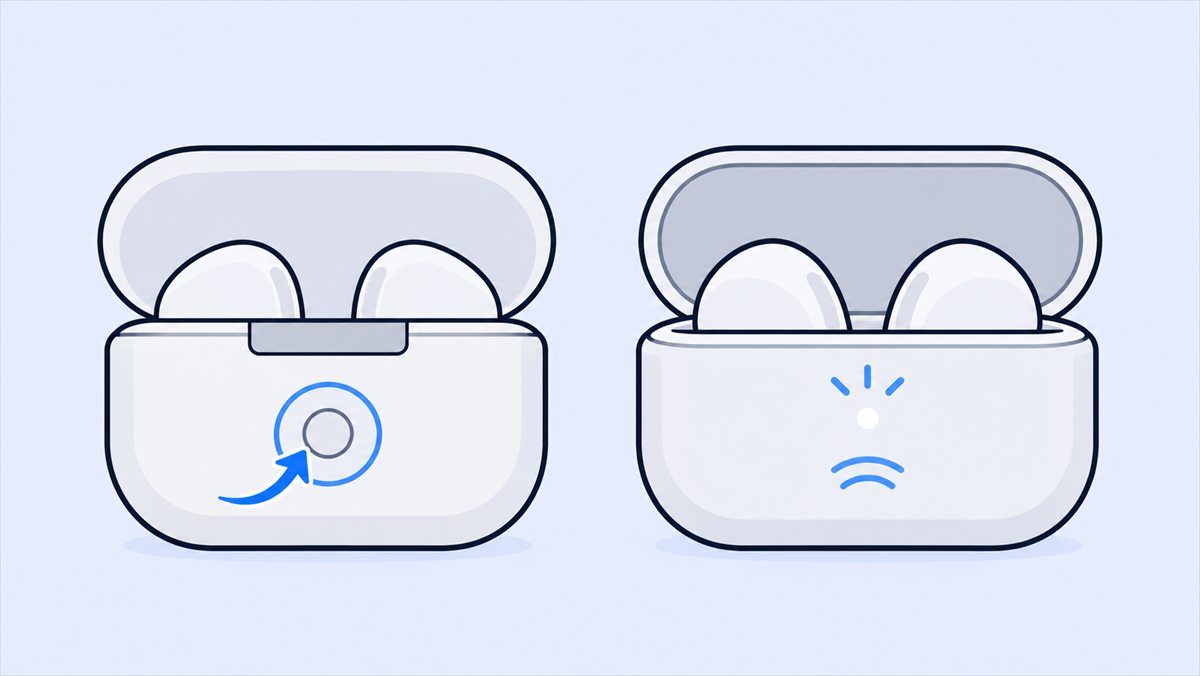
| AirPods 1, 2 or 3, AirPods Pro 1 or 2 | With the AirPods in the case, open the lid, then press and hold the setup button on the back of the case for about 5 seconds, or until the status light flashes white. | Yes, on the back of the case |
| AirPods 4 or 5, AirPods Pro 3 | Open the case with the AirPods inside, hold it next to your device, then double-tap the front of the case so the status light flashes white. | No: double-tap the front |
| AirPods Max | Press and hold the listening mode button for about 5 seconds, or until the status light flashes white. | Listening mode button |
How to connect AirPods to a Chromebook
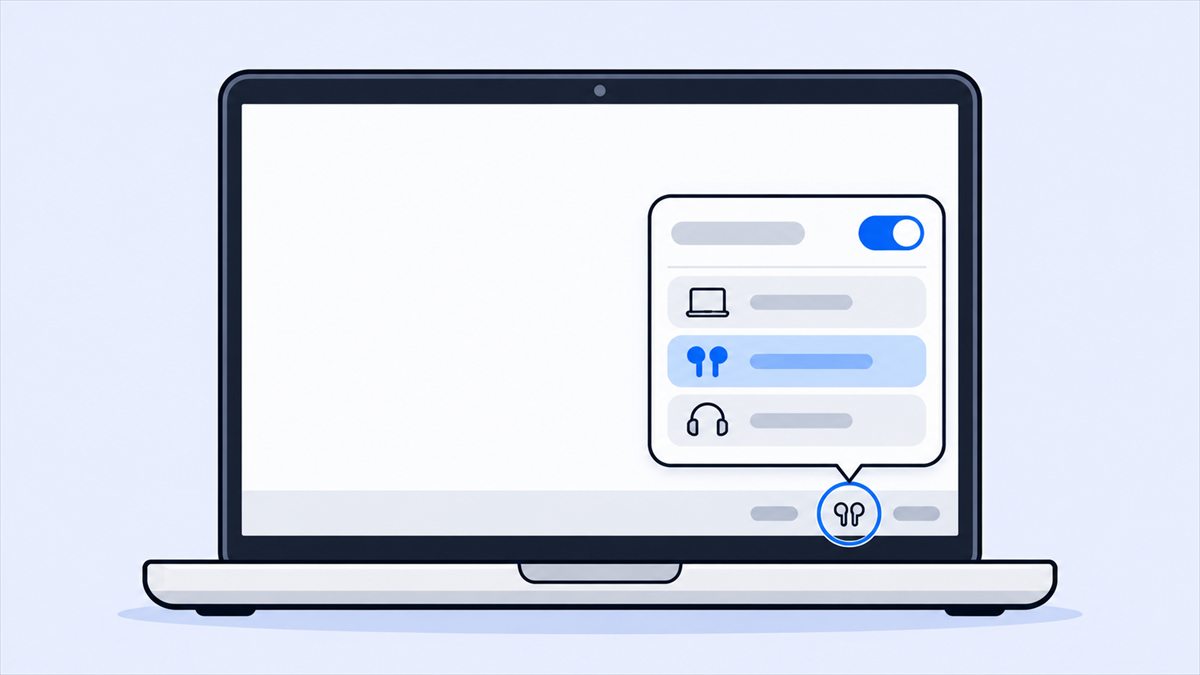
- On your Chromebook, select the time at the bottom right, then select Bluetooth and turn it on.
- Select Pair new device.
- Put your AirPods in pairing mode using the table above, with the case lid open.
- When your AirPods appear in the list, select them and follow any on-screen instructions.
- To check, select the time and Bluetooth again. Your AirPods should be listed under “Currently connected.”
Google’s steps for connecting a Chromebook to Bluetooth devices say your Chromebook is Bluetooth enabled when the Bluetooth option appears after you select the time. To connect again later, open Settings, then Bluetooth, and select your AirPods under “Previously connected.”
AirPods 4, AirPods 5 and AirPods Pro 3: no setup button
The newer models have no setup button on the case, so the usual “press and hold the button” advice does not apply. Open the case with the AirPods inside, hold it next to your Chromebook, and double-tap the front of the case until the status light flashes white, as Apple describes. Then pair them from the Chromebook’s Bluetooth settings as in the steps above.
What does not work with AirPods on a Chromebook
- Siri: Apple says you cannot use Siri with AirPods on a non-Apple device, but you can listen and talk.
- Automatic switching between devices and automatic pairing, according to SoundGuys.
We found no source that tested the AirPods microphone on a Chromebook, so we cannot say how it sounds. After pairing, choose your AirPods as the input in the Chromebook’s audio settings and run the mic test (see below) to check it yourself.
AirPods will not connect to your Chromebook? Try these in order
- Check pairing mode. The status light on the case should flash white. Use the table above for your model.
- Disconnect them from nearby Apple devices. SoundGuys says AirPods may have paired automatically with a nearby iPhone or Mac. Turn Bluetooth off on that device or disconnect the AirPods there, then try again.
- Forget the AirPods and pair again. On the Chromebook, select the time, open Settings, select Bluetooth, choose your AirPods and select Forget, then pair them again.
- Update and restart the Chromebook. Google suggests installing any system updates, turning Bluetooth off and on, turning the Chromebook off and on, and, if needed, a hard reset.
- Reset the AirPods. Apple’s steps depend on the model. For AirPods 1, 2 or 3 and AirPods Pro 1 or 2: put the AirPods in the case, close the lid and wait 30 seconds, open the lid, then press and hold the setup button on the back for about 15 seconds until the status light flashes amber, then white. For AirPods 4, AirPods 5 and AirPods Pro 3: wait 30 seconds with the lid closed, open the lid and double-tap the front of the case while the status light is on. Double-tap again when it flashes white, then a third time when it flashes faster, until it flashes amber, then white. See Apple’s reset instructions if the light does not flash white. Then pair them with the Chromebook again.
- On a school Chromebook, ask the administrator. Google notes that on a work or school Chromebook some devices might not work.
If the problem continues, Google suggests contacting the maker of the Bluetooth device or the Chromebook.
Sound and microphone settings on a Chromebook
- Select the time at the bottom right, then Audio settings. Under Output, the device in use has a green check. Under Input, you can choose which microphone to use.
- In Settings, Device, Audio, you can change the volume, switch devices and run a mic test, according to Google’s audio help.
- On some Chromebooks a Bluetooth Super Resolution option appears when the input is a Bluetooth hands-free device. Google says it improves the quality of the sound from the device’s microphone.
Looking for other options?
If you want earbuds or a headset picked for a Chromebook, with notes on school use and volume limits for kids, see our Chromebook headphone guide.
How we research
For this guide we used Apple’s support pages for pairing AirPods with a non-Apple device and for resetting them, Google’s Chromebook help pages for Bluetooth and audio, and SoundGuys’ article on what you lose with AirPods on a Chromebook. We say which AirPods model each step is for, and we do not test products or steps ourselves. Menu names can differ between Chromebook versions.
Frequently asked questions
Do AirPods work with a Chromebook?
Yes. Apple says AirPods work as a Bluetooth headset with a non-Apple device, and Google says Chromebooks work with Bluetooth headphones. You cannot use Siri.
How do I put AirPods in pairing mode?
It depends on the model. For AirPods 1, 2 or 3 and AirPods Pro 1 or 2, press and hold the setup button on the back of the case for about 5 seconds. For AirPods 4 or 5 and AirPods Pro 3, double-tap the front of the case. For AirPods Max, hold the listening mode button for about 5 seconds. The status light flashes white when pairing mode is on.
How do I connect AirPods 4, AirPods 5 or AirPods Pro 3 without a button?
Open the case with the AirPods inside, hold it next to your Chromebook and double-tap the front of the case until the status light flashes white. Then select them in the Chromebook’s Bluetooth list.
Does every Chromebook have Bluetooth?
Google says your Chromebook is Bluetooth enabled when the Bluetooth option appears after you select the time at the bottom right. If it does not, a wired headset is the simple alternative: see our guide to earbuds and headsets with a mic for laptops and PCs.
Can I use AirPods on a school Chromebook?
Ask the school. Google notes that on a work or school Chromebook some devices might not work and that your administrator can help.
What other headphones work with a Chromebook?
Most Bluetooth and wired headphones should. See our guide to headphones and earbuds for Chromebook. For wireless earbuds with a Windows or Mac laptop, see our guide to wireless earbuds for a computer or laptop. Using a Windows PC instead? See our guide to how to connect AirPods to a Windows PC or laptop.
Written by