
Headphones Not Detected on Your PC or Laptop? Fixes to Try in Order
When headphones are plugged in but your computer shows no sign of them, or shows them but plays no sound, the cause is usually small: the wrong output device is selected, the sound is muted, a setting is interfering, or the audio driver is not working.
This guide gives the fixes in the order the official Microsoft, Apple and Google help pages suggest, for Windows, Mac and Chromebook, and it covers wired, USB and Bluetooth headphones. It is about headphones that play no sound or are not listed. If your microphone is the problem, see our guide to earbuds and headsets with a mic. For other headphone and headset problems, see our guide that sorts them by symptom.
How we researched this
We don’t test products or steps ourselves. The steps come from Microsoft Support, Apple Support and Google’s Chromebook Help, and we say which system each one is for. Menu names can differ a little between versions. See the full method.
Quick answer
Check the plug and try another port, then open your sound settings and pick your headphones as the output: on Windows, Start > Settings > System > Sound; on a Mac, System Settings > Sound > Output; on a Chromebook, the time at the bottom right > Audio settings. Make sure the volume is up and nothing is muted. If Windows does not list your headphones at all, open Device Manager, show hidden devices and scan for hardware changes, run the audio troubleshooter, then update or reinstall the audio driver and restart. Bluetooth headphones that are connected but silent have their own steps below.
What you see, and where to start
Match what happens on your screen to the table to find the right section.
| What you see | What it usually means | Where to go |
|---|---|---|
| Your headphones are not listed under Output in Sound settings | Windows has not detected the device: Microsoft says the audio driver may be missing, outdated, disabled or not loading | Windows, steps 5 and 6 |
| Your headphones are listed, but you hear nothing | The wrong output is selected, the sound is muted, or audio enhancements are interfering, says Microsoft | Windows, steps 1 to 3 |
| Windows says “No audio output device is installed”, or Sound settings are grayed out | The audio driver is missing, outdated or disabled | Windows, steps 5 and 6 |
| Sound plays from the speakers, not your headphones | Another output device is selected | Windows, steps 1 and 2 |
| You use an external monitor and hear nothing | Microsoft says a monitor without built-in speakers must not be your default output | Windows, step 2 |
| Bluetooth headphones show as connected but stay silent | The output is set to another device, or a Bluetooth setting or driver needs attention | Bluetooth headphones |
| A Mac plays no sound through your headphones | The Output device is not your headphones, or Mute is on | Mac |
| A Chromebook plays no sound through your headphones | The Output device is not your headphones | Chromebook |
Two-minute checks first
Try these before you change any settings. They rule out the simple causes.
- Push the plug all the way in and check the cable for loose connections. Microsoft says to check headphone connections for loose cords or cables.
- Try another port. Microsoft says some systems use a green jack for output and a pink jack for the mic, while others label the jacks “headphone” and “microphone”, and suggests trying the obvious outputs one at a time. For USB headphones, try a different USB port.
- Turn every volume control up and make sure nothing is muted. Microsoft says some speakers and apps have their own volume controls, and Apple says an app’s volume can only be equal to or lower than the computer’s output volume.
- Restart the computer. Microsoft says restarting can fix temporary problems that stop audio devices being detected.
- Try the headphones on another device, such as a phone, to see whether the headphones or the computer is the problem. Apple makes the same point about isolating the problem, saying to try the file on another computer or media player.
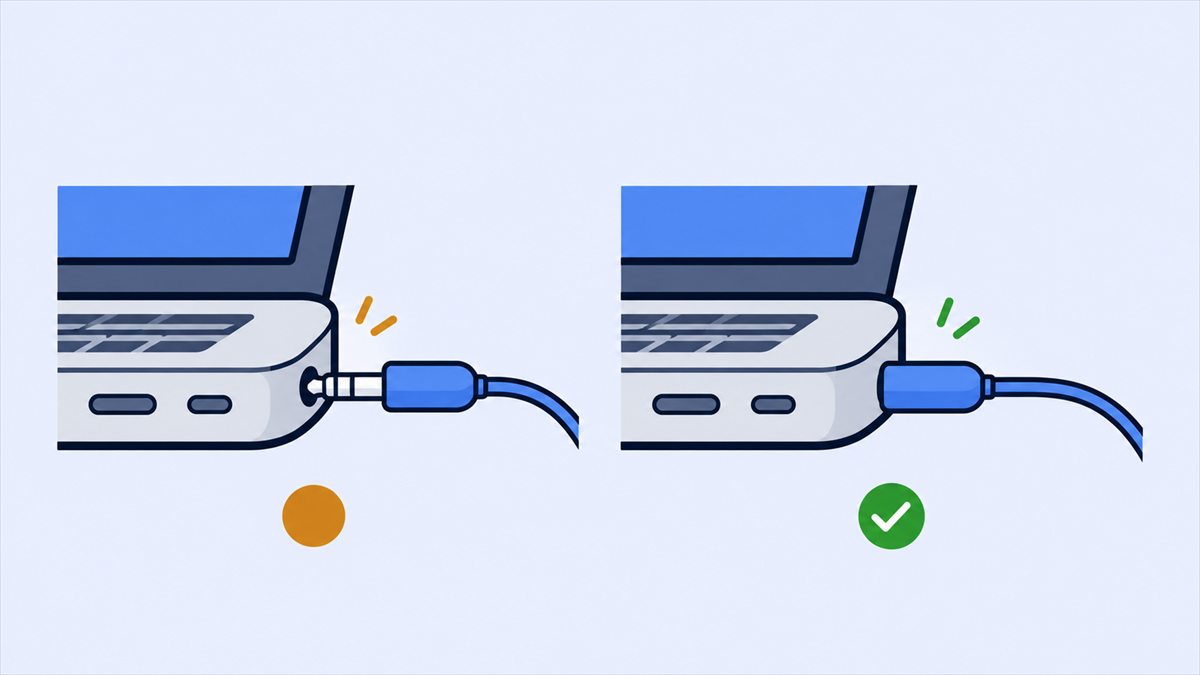
Match your connection to the likely fix
| Your connection | What to check | Source |
|---|---|---|
| 3.5 mm headphone jack | Use the right jack and try another one. Microsoft notes that speakers may not work while headphones are plugged in, so unplug them to test. | Microsoft Support |
| USB headphones or a USB headset | Try another USB port and set the device as the default output. On a Mac, check that it is listed under USB in System Information. | Microsoft Support, Apple Support |
| HDMI or a monitor with speakers | Set the device as the default output. A monitor with no built-in speakers must not be the default. | Microsoft Support |
| Bluetooth | Check that the output is set to your Bluetooth headphones, then follow the Bluetooth steps below. | Microsoft Support |
Windows: fixes in order
Microsoft’s pages (no sound from speakers or headphones, missing or undetected audio output device, fix sound or audio problems and update audio drivers) cover Windows 11 and Windows 10. Try each step, test your headphones, and go on to the next only if there is still no sound. If every step fails and the jack itself seems dead, a USB audio adapter adds a replacement one: see our guide to USB audio adapters with a mic.
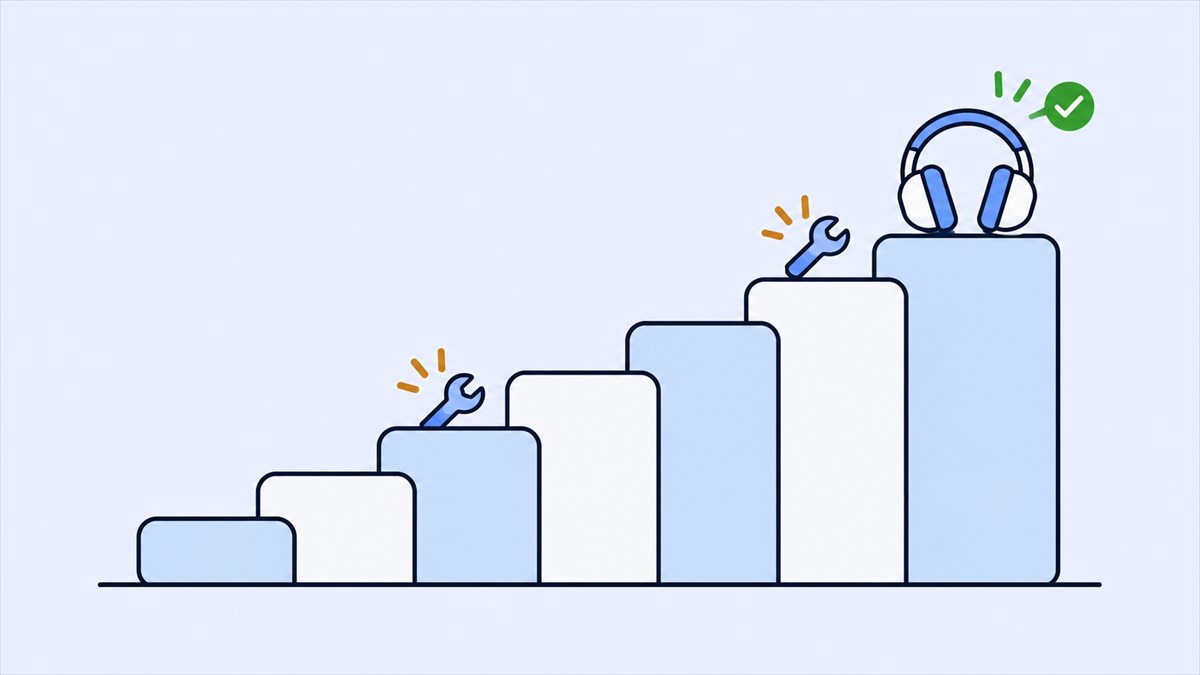
1. Choose your headphones as the output
- Select Start > Settings > System > Sound.
- Under Output, select your headphones.
- Make sure the volume is not muted and the slider is turned up.
Microsoft says that if more than one output is listed, you need the right one selected. If you use an external monitor that has no built-in speakers, make sure it is not selected as the default output, or you will hear nothing.
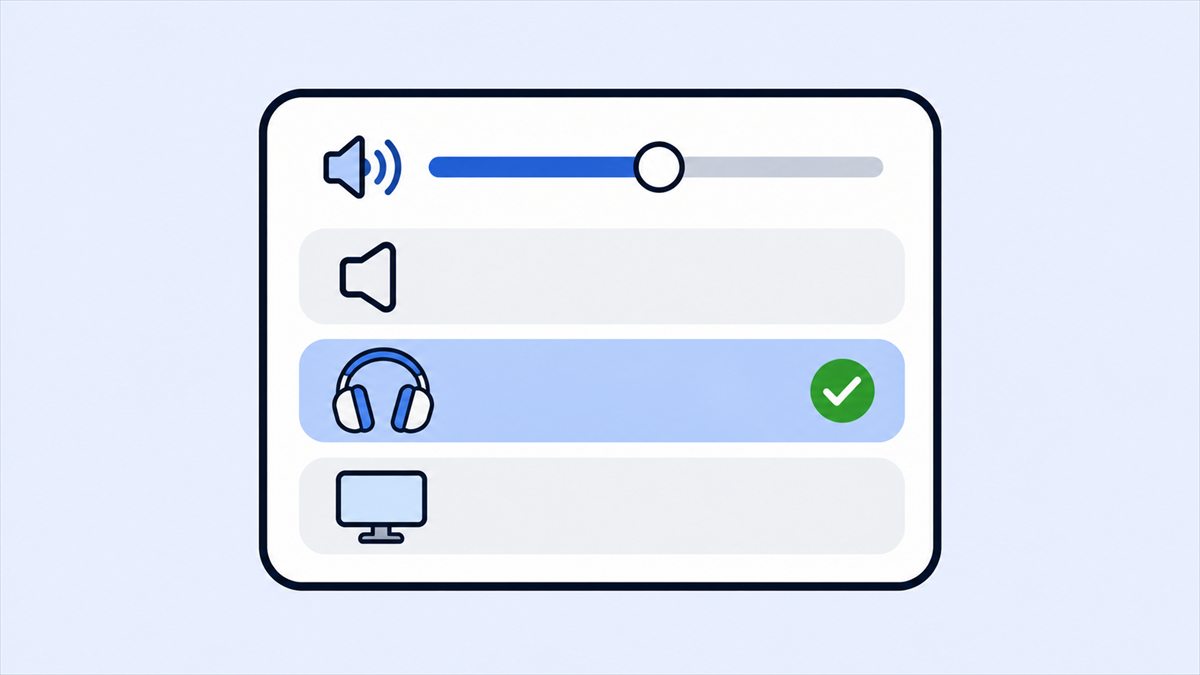
2. Set them as the default device
- Select Start > Settings > System > Sound.
- Select More sound settings, then the Playback tab.
- Right-click your headphones and select Set as default.
Microsoft says USB and HDMI devices may need to be set as the default this way.
3. Turn off audio enhancements
- Select Start > Settings > System > Sound.
- Under Output, select your headphones.
- Scroll to Advanced settings and set Audio enhancements to Off.
4. Run the audio troubleshooter
On Windows 11, open the Audio troubleshooter in the Get Help app, or select Start > Settings > System > Troubleshoot > Other troubleshooters, find Audio and select Run. Microsoft says it runs diagnostics and tries to fix most audio problems. Microsoft gives these troubleshooter steps for Windows 11 only, so on Windows 10 skip to the next step.
5. Check that Windows can see the device
- Select Start, type Device Manager, and open it.
- Expand Sound, video and game controllers.
- If you see your audio device, right-click it and select Enable device, if that option is there.
- If you do not see it, select View > Show hidden devices, then Action > Scan for hardware changes.
Microsoft also says to check that the device was not disabled by mistake: in More sound settings, open the Playback tab, select your device, select Properties, and next to Device usage choose Use this device (enable).
6. Update, reinstall or roll back the audio driver
- Select Start > Settings > Windows Update > Check for updates, install any audio driver updates, and restart. Microsoft recommends this route first.
- If that does not help, open Device Manager, expand Sound, video and game controllers, right-click your audio device, select Update driver, then Search automatically for drivers.
- Still nothing? Right-click the device, select Uninstall device, confirm, and restart. Windows reinstalls the driver on its own.
- If the problem started after an update, Microsoft says you can roll back the audio driver. If Windows says the best driver is already installed, a newer one may still be on your PC maker’s support website.
7. Install updates and restart
Select Start > Settings > Windows Update, select Check for updates, install what is offered, then restart your PC.
Mac: headphones not playing sound
These steps follow Apple’s pages Change the sound output settings on Mac and If you can’t hear sound from your Mac speakers.
- Choose Apple menu > System Settings, then click Sound in the sidebar (you may need to scroll down).
- Click Output and select your headphones in the list. Apple says to choose Headphones for any device plugged into the computer’s sound port.
- Make sure the Output volume slider is not all the way to the left and the Mute checkbox is not selected.
- For USB headphones, hold Option, choose Apple menu > System Information, click USB, and check that the headphones are listed. If they are not, unplug them and plug them in again.
Apple adds that volume controls inside apps can only be equal to or lower than the computer’s output volume, so check the app too.
Chromebook: headphones not playing sound
- Select the time at the bottom right, then Audio settings.
- Under Output, check that your headphones are the device in use. Google’s help says the device in use has a green check.
- If they are not, use Device on the Audio Settings page to select your headphones, and check that Mute is off and the volume is up.
Google’s help does not describe what to do if your headphones are missing from the list. Try a different pair or port to see which part is the problem, and see our guides to headphones and earbuds for a Chromebook and connecting AirPods to a Chromebook.
Bluetooth headphones connected but silent
If your Bluetooth headphones show as connected on Windows but you hear nothing, Microsoft lists these steps:
- On Windows 11, run the Bluetooth troubleshooter in the Get Help app.
- Open Start > Settings > System > Sound and confirm your Bluetooth headphones are selected under Output.
- Open Settings > Bluetooth & devices > Devices, select your headphones, then Advanced sound properties (you must be connected to see it). Under Output settings, choose the format 2 channels, 16 bit, 48000Hz (DVD Quality).
- Remove the headphones (More options > Remove device) and add them again.
- Turn Bluetooth off, wait 10 seconds, turn it back on, and pair again.
- Update the Bluetooth driver in Device Manager, check for Windows updates, and restart the PC.
- Check that your headphones support A2DP, the Bluetooth profile for higher-quality audio streaming, in the manual or on the maker’s website.
For pairing, USB receivers (dongles) and Bluetooth versus a dongle, see our guide to wireless earbuds for a computer or laptop.
If sound plays but only from one earbud or one side, see our guide to one earbud or one side of your headphones not working.
If you hear sound but it is muffled, crackling or full of static, see our guide to headphones that sound muffled, crackling or full of static.
If it is the headphones
If your headphones fail on every device, it may be time for a new pair. See which earbuds and headsets with a mic reviewers recommend for laptops and PCs, and which connector each one needs.
How we research
The steps come from Microsoft Support (Windows 11 and Windows 10), Apple Support and Google’s Chromebook Help, and we say which system each one is for. We do not test products or steps ourselves, and we say where an official page does not cover something. Menu names can differ between versions.
Frequently asked questions
Why does my computer not detect my headphones?
On Windows, Microsoft says a missing, outdated, disabled or non-loading audio driver can stop a device being detected, and a wrong output selection can make headphones seem missing. Check that your headphones appear under Output in Sound settings; if they do not, check Device Manager, show hidden devices and scan for hardware changes.
Why are my headphones plugged in but there is no sound?
Microsoft lists the wrong output device, muted sound, audio enhancements and an audio driver that is not working as the usual causes. Select your headphones under Output, make sure nothing is muted, turn audio enhancements off and run the audio troubleshooter.
How do I make Windows use my headphones?
Select Start > Settings > System > Sound and choose your headphones under Output, which also sets them as the default, as Microsoft explains. You can also open More sound settings, select the Playback tab, right-click your headphones and select Set as default.
Why is the headphone jack on my laptop not working?
Check that the plug is fully in and try another jack if your computer has one. Microsoft says some systems use a green jack for output and a pink jack for the mic, while others label them “headphone” and “microphone”. Then work through the Windows steps above, because Microsoft lists the output device, audio enhancements and the driver as causes of no sound from wired headphones.
How do I show missing audio devices in Device Manager?
Open Device Manager, expand Sound, video and game controllers, then select View > Show hidden devices and Action > Scan for hardware changes, as Microsoft describes. If your device is listed but disabled, right-click it and select Enable device.
Should I reinstall my audio driver?
Microsoft recommends updating through Windows Update first, then using Update driver in Device Manager. If that does not help, uninstalling the device and restarting makes Windows reinstall the driver. If the problem began after an update, you can roll back the driver, and your PC maker’s support website may have a newer one.
Why does my Mac not recognize my headphones?
Open System Settings > Sound > Output and select your headphones. Apple says to choose Headphones for any device plugged into the sound port. Also check that the Output volume slider is up and Mute is off, and for USB headphones check that System Information lists them under USB.
My Bluetooth headphones are connected but silent. What should I do?
Make sure they are selected under Output in Sound settings, then try removing and adding them again, turning Bluetooth off for 10 seconds, updating the Bluetooth driver and restarting, as Microsoft suggests. The Bluetooth section above has the full list.
Written by