
How to Connect AirPods to a Windows PC or Laptop (Windows 11 and 10)
AirPods connect to a Windows PC the way any Bluetooth headphones do: put them in pairing mode, then choose them from the Bluetooth list in Windows. The way to start pairing mode differs by model, and the newest models have no setup button.
This guide gives the steps for Windows 11 and Windows 10, lists what you give up away from Apple devices, explains why call sound can get worse on a PC, and goes through the fixes in order if your AirPods will not connect.
How we researched this
We don’t test products or steps ourselves. The pairing steps come from Apple’s and Microsoft’s own support pages, and the fixes from Microsoft’s Bluetooth troubleshooting page and Apple’s reset page. What you lose and how the microphone behaves come from PCWorld, BGR and Windows Central. None of them shows a measured test of the AirPods microphone, so we say so where it matters. Menu names can differ a little between Windows versions. See the full method.
Quick answer
Yes. Apple says AirPods work as a Bluetooth headset with a non-Apple device, and Microsoft’s steps work for any Bluetooth device. Put the AirPods in pairing mode: hold the setup button on the back of the case for AirPods 1 to 3 and AirPods Pro 1 and 2, double-tap the front of the case for AirPods 4, AirPods 5 and AirPods Pro 3, or hold the listening mode button on AirPods Max. On Windows 11, select the Network, Sound or Battery icon next to the clock, open the device list under Bluetooth and select your AirPods. You cannot use Siri, and PCWorld says the microphone falls well short of what you get on an iPhone or Mac.
Start pairing mode for your AirPods model
Windows only sees AirPods that are in pairing mode. Apple gives a different way to start it for each model, so find yours first.
| Your AirPods | What to do (Apple) | Setup button? |
|---|---|---|
| AirPods 1, 2 or 3, AirPods Pro 1 or 2 | With the AirPods in the case, open the lid, then hold the small setup button on the back for roughly 5 seconds until the light blinks white. | Yes, on the back |
| AirPods 4 or 5, AirPods Pro 3 | Open the case with the AirPods inside, bring it close to the PC and double-tap the case front until the light blinks white. | No: double-tap |
| AirPods Max | Hold the listening mode button for about 5 seconds until the light blinks white. | Listening mode button |
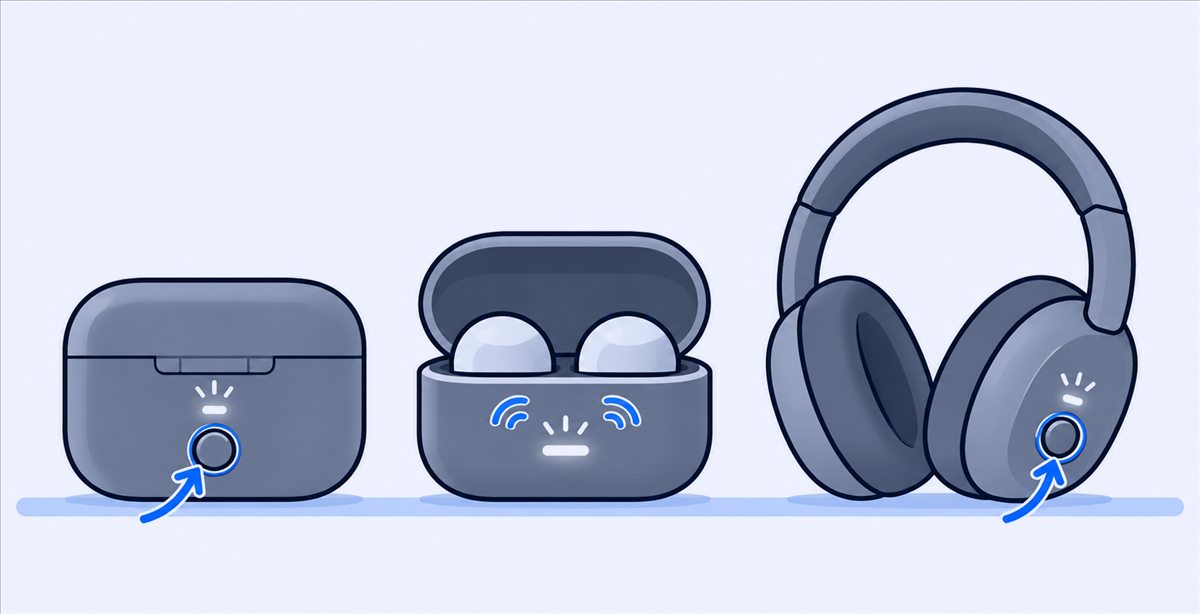
How to connect AirPods to Windows 11
- Put the AirPods in pairing mode using the table above and keep the lid open.
- On the taskbar, select the Network, Sound or Battery icon next to the time and date.
- Select the arrow on the Bluetooth quick setting (Microsoft calls it “Manage Bluetooth devices”), then select your AirPods under New devices. You may need to scroll past “Your devices.”
- Follow any on-screen instructions, then select Done.
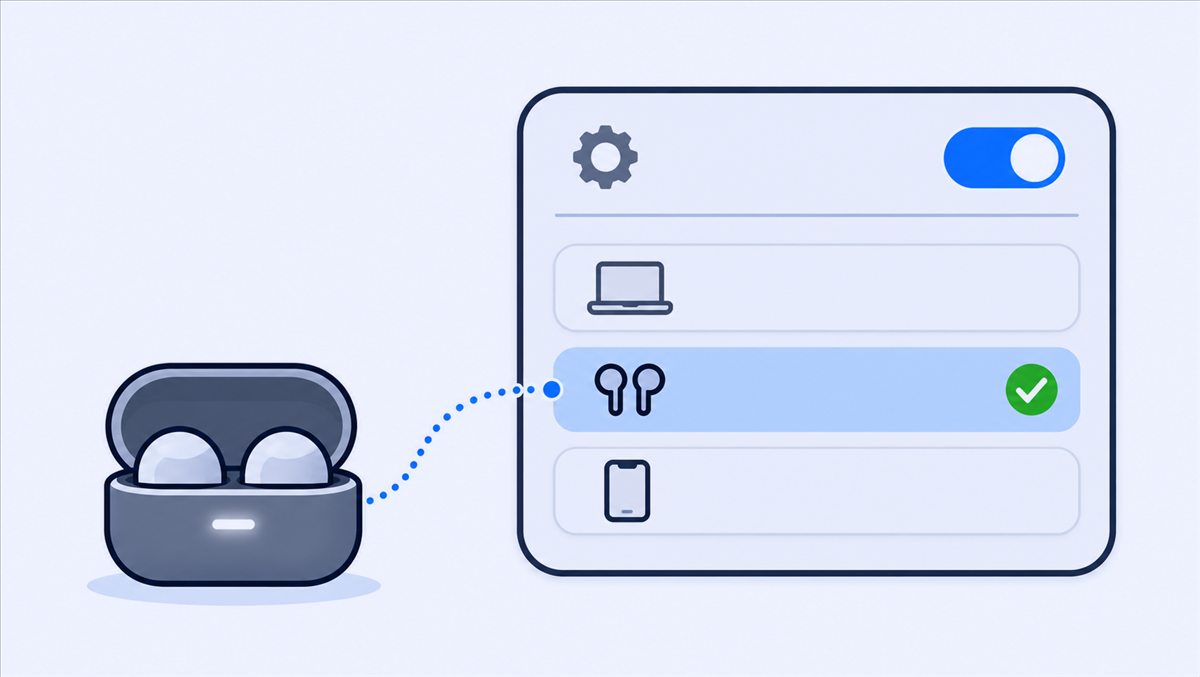
PCWorld adds that Windows 11 may first list the AirPods as “Headphones” and then rename them “AirPods” or “AirPods Pro.” Microsoft also describes Swift Pair: if your PC supports it, a notification appears when the AirPods are nearby and in pairing mode, and you select Connect.
How to connect AirPods to Windows 10
- Put the AirPods in pairing mode (table above).
- Select Start, then Settings, then Devices, then Bluetooth & other devices.
- Select Add Bluetooth or other device, then Bluetooth.
- Select your AirPods in the list, follow any extra instructions, then select Done.
Microsoft’s page notes that support for Windows 10 ended on October 14, 2025, but it still lists these steps.
Connecting again later
Microsoft says that when Bluetooth is on, a paired device and the PC connect automatically when they are in range. Windows Central says AirPods reconnect on their own after you take them out of the case.
What you lose with AirPods on Windows
- Siri: Apple says you cannot use Siri with AirPods on a non-Apple device, but you can listen and talk.
- Automatic ear detection and quick switching: Windows Central (updated May 2022) says music does not pause when you take an AirPod out, and the one-tap switching between devices on your Apple ID does not work. On Windows the AirPods act as basic Bluetooth earbuds.
- Some other features: PCWorld says AirPods “lose some functionality” on Windows but does not list it.
Windows Central also says the basic press controls still work on a PC: one press plays or pauses, two or three presses skip, and press and hold switches noise control on AirPods Pro. That article is from 2022, and we found no newer test of the controls on Windows, so check yours.
Microphone and call sound on a PC
This is the weak spot. PCWorld says the AirPods microphone “falls quite short” of what you get on iOS or macOS, that an active microphone can lower the sound quality, and that AirPods handle Zoom calls “in a pinch” but are not what the writers would pick as a main Windows headset. Neither PCWorld nor BGR shows a measured test, so treat this as their report, not a measurement.
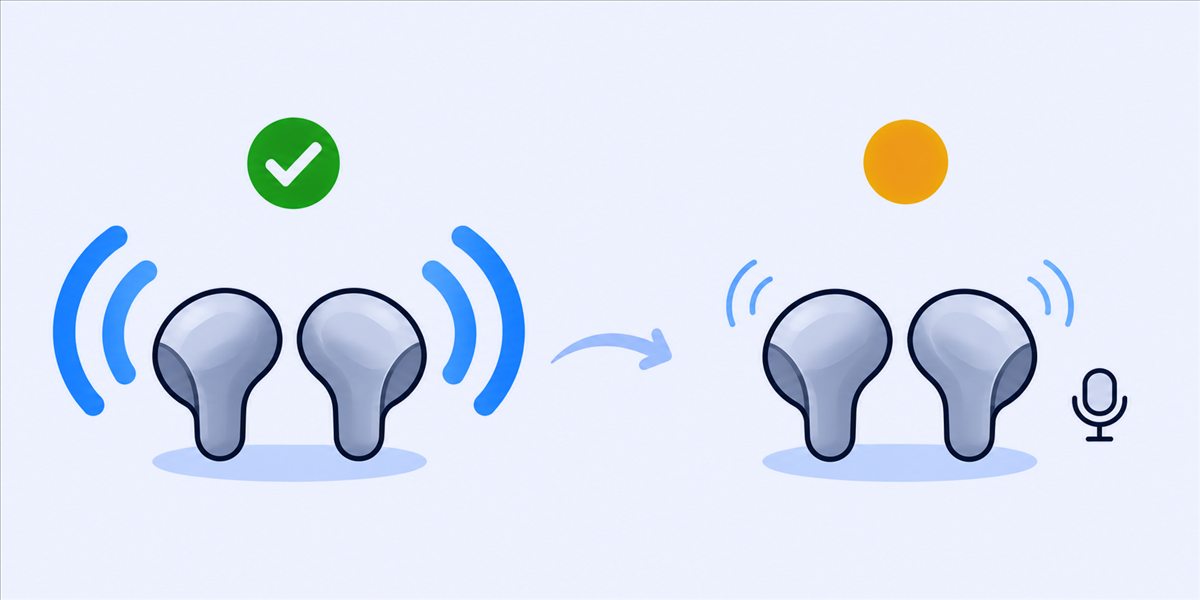
BGR explains the sound drop: when a Bluetooth headset has a microphone, Windows can switch it to a “hands-free” mode that lowers sound quality, and BGR says this affects every Bluetooth headset with a mic, not only AirPods. BGR’s two fixes:
- Open Settings, then Sound, then More sound settings. On the Playback tab, select AirPods Stereo and choose Set Default.
- If that does not help, on the Recording tab right-click AirPods Hands-Free AG Audio and choose Disable. The AirPods microphone then stops working for calls, so use your PC’s microphone or a headset.
If you take calls on a PC every day, a headset with its own microphone is the simpler answer: see our guide to earbuds and headsets with a mic for laptops and PCs.
AirPods will not connect or will not show up? Try these in order
- Check pairing mode. The status light on the case should flash white. Use the table at the top for your model.
- Disconnect them from nearby devices. PCWorld says to turn off Bluetooth on other devices that may hold the pairing, such as your iPhone or Mac.
- Check Bluetooth on the PC. Microsoft says to make sure Bluetooth is on, turn off airplane mode, switch Bluetooth off and on, and keep the accessory in range and away from USB 3.0 ports, which can cause interference.
- Make the PC show more devices. On Windows 11, Microsoft says to open Settings, Bluetooth & devices, Devices, and set Bluetooth devices discovery to Advanced if your device does not appear.
- Remove the AirPods and add them again. In Settings, Bluetooth & devices, Devices, select More options next to the AirPods, then Remove device, and pair them again.
- Run the Bluetooth troubleshooter. On Windows 11 it is under Settings, System, Troubleshoot, Other troubleshooters, Bluetooth. On Windows 10 it is under Settings, Update & Security, Troubleshoot.
- Update the Bluetooth driver. Microsoft says an outdated or incompatible driver is one of the most common causes of Bluetooth problems. Use Device Manager, Bluetooth, your adapter, Update driver, or download the latest driver from the PC maker’s website.
- Reset the AirPods. Apple’s reset is different for older and newer models: a long press of the setup button for AirPods 1 to 3 and Pro 1 and 2, and a sequence of three double-taps for AirPods 4, 5 and Pro 3. Follow the exact order on Apple’s reset page, which also says what to do if the light does not flash white. AirPods Max are not covered there. Then pair them again.
If none of this works, Microsoft’s page suggests contacting the maker of the accessory or the PC.
More earbud and headset guides
- How to connect AirPods to a Chromebook: the same AirPods, a different computer.
- One earbud or one side of your headphones not working: if one AirPod is silent or quiet.
- Best wireless earbuds for a computer or laptop: Bluetooth or a USB dongle, if you want earbuds made for a PC.
- Headphone and headset problems: every fix guide sorted by what you notice.
- All DeskConsensus guides: every guide in one place.
If the AirPods mic is not good enough
AirPods are fine for music on a PC, but calls are where they fall short. Our guide covers earbuds and headsets with a mic that work with laptops and PCs, and which connector each one needs.
How we research
For this guide we used Apple’s support pages for pairing AirPods with a non-Apple device and for resetting them, Microsoft’s support pages for pairing a Bluetooth device and fixing Bluetooth problems. For what you lose and how the microphone behaves we used three articles: PCWorld (July 2024), BGR (September 2026) and Windows Central (updated May 2022). None of them shows a measured test of the microphone, and the Windows Central article is old, so we say so. We do not test products or steps ourselves. Menu names can differ between Windows versions.
Frequently asked questions
Can you connect AirPods to a Windows laptop?
Yes. Apple says AirPods can be used as a Bluetooth headset with a non-Apple device, and Microsoft’s steps for pairing a Bluetooth device in Windows 11 and Windows 10 apply. You cannot use Siri, but you can listen and talk.
How do I put AirPods in pairing mode?
It depends on the model, and the table at the top of this page lists Apple’s three methods: the setup button on the back of the case, a double-tap on the case front, or the listening mode button on AirPods Max. Pairing mode is on when the light blinks white.
How do I connect AirPods 4, AirPods 5 or AirPods Pro 3 to Windows without a button?
Open the case with the AirPods in it, put it near the PC and double-tap the front of the case. When the light blinks white, pick the AirPods from the Bluetooth list.
Why do my AirPods not show up in the Windows Bluetooth list?
The most common reasons are that they are not in pairing mode, they are connected to a nearby phone or Mac, or Windows is hiding some devices. On Windows 11, Microsoft says to set Bluetooth devices discovery to Advanced, and to keep the accessory away from USB 3.0 ports. See the fixes above.
Can I use the AirPods microphone on a PC?
It works as a Bluetooth microphone, but PCWorld says it falls quite short of the AirPods microphone on iOS or macOS, and BGR says using a Bluetooth mic can lower the sound quality in Windows. If you disable the hands-free device to keep the sound quality, the AirPods microphone stops working for calls.
Why does the sound get worse when I join a call?
BGR says Windows can switch a Bluetooth headset with a microphone to a hands-free mode that lowers sound quality. Its fix is to set AirPods Stereo as the default playback device, or to disable the hands-free device and use another microphone.
Do AirPods work with Windows 10?
Yes. Microsoft lists the pairing steps for Windows 10 as well as Windows 11, but says support for Windows 10 ended on October 14, 2025.
What do I lose with AirPods on Windows?
Apple says you cannot use Siri. Windows Central (2022) adds that automatic ear detection and the quick switching between Apple devices do not work, so the AirPods behave like ordinary Bluetooth earbuds.
Written by