
Monitor Flickering: What It Means and How to Fix It in Order
A flickering monitor usually comes down to the graphics driver (the software that runs your graphics hardware) or an app, the video cable or port, a refresh rate (how often the screen redraws) or sync setting, the power, or the monitor itself. Each help page covers one side: Microsoft covers Windows, Apple covers a Mac’s cables and refresh rate, and the monitor makers cover the monitor, its cable and its power. This page puts them in one order and marks the steps that are for Windows or a Mac only. The order is ours.
How we researched this
We don’t test monitors or steps ourselves. The steps come from Microsoft Support for Windows, Apple Support for Mac, and the support pages of Dell, BenQ and Samsung, and the flicker measurements from RTINGS, which says it buys the monitors it tests. We name each source where we use it and say what it leaves out. See the full method.
Quick answer
Find out which side is at fault first: swap the cable and port, then use the steps for your system, Windows or Mac.
Try another video cable and port, then watch the monitor’s own menu: Samsung says that if the menu is steady, the monitor is fine. On Windows, reset the graphics driver (press the Windows logo key, Ctrl, Shift and B together) and see whether Task Manager flickers too: Microsoft says that points to the driver. On a Mac, Apple says Adaptive Sync may cause flicker outside games and video, so choose a fixed refresh rate in System Settings > Displays. If it flickers only in games, turn G-Sync or FreeSync off.
Why is my monitor flickering? Start with what you see
Each line gives what you see, what the source says it usually points to, and where to go next.
- On Windows, everything flickers, including Task Manager. Probably the display driver, says Microsoft. See fixes 1 and 2.
- On Windows, the screen flickers but Task Manager stays steady. Probably an app, says Microsoft. See fix 3.
- It flickers whatever is connected, and the monitor’s own menu flickers too. The monitor or its power: Samsung says to request service, and Dell says to run the built-in self-test. See test 3.
- It flickers or cuts out for a moment. A loose or damaged cable or an unstable power source, say BenQ and Samsung. See fixes 4 and 7.
- Only one of two monitors flickers. That monitor, its cable or its port, says BenQ. See test 2.
- It flickers only in a game or a video. A sync feature: Dell says G-Sync on a monitor that is not G-Sync Compatible can flicker. See G-Sync and FreeSync flicker.
- On a Mac, it flickers in everyday apps, not just games or video. Adaptive Sync, says Apple. See On a Mac.
- It looks steady, but flickers at low brightness. Backlight dimming: RTINGS says a monitor can flicker at lower backlight levels even if it is flicker-free at maximum. See Flicker you cannot see.
Three tests that show where the fault is
Do these before changing any settings. Each one points at the computer side or the monitor side.
- 1. Windows only: Task Manager. Press Ctrl + Shift + Esc. If Task Manager flickers with the rest of the screen, the display driver is the likely cause, and if it stays steady while the rest flickers, an app is. Microsoft words both as “probably”, so treat it as a pointer, not proof. We found no Apple version of this test.
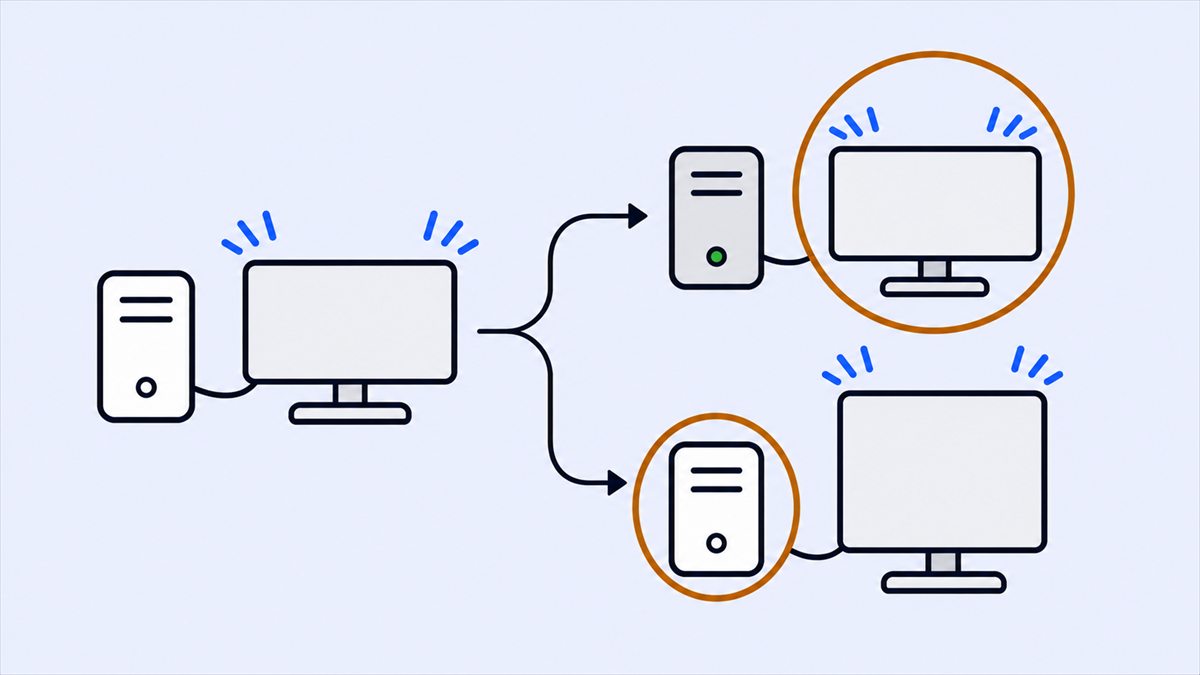
- 2. Swap. Try another video cable and port, then the same monitor on another computer or console, or another monitor on this computer. If the flicker follows the monitor, the monitor is the likely cause, and if it stays with the computer, the computer side is. That reading is ours. BenQ lists a different cable, port and device, and says a monitor that still flickers may have defective hardware.
- 3. The monitor’s own menu. Open the on-screen menu, or run the built-in self-test if your model has one. If the menu is steady, the monitor is fine and the cause is the cable, the settings or the computer. Samsung says that if the menu is fine, the monitor is fine, and to request service if not. Dell says that a passing self-test means the monitor is not the problem.
Fixes, in order
The steps are the sources’, and the order is ours: free and reversible first. Fixes 1 to 3 are for Windows, and a Mac has its own steps next.
- Reset the graphics driver (Windows). Microsoft says pressing the Windows logo key, Ctrl, Shift and B together may fix it, and if not, to restart the PC.
- Roll back or update the display driver (Windows). Microsoft says to roll back the driver if Windows Update recently changed it, and otherwise to update or uninstall it in Device Manager under Display adapters (administrator rights needed). Dell and Samsung also list a graphics driver update.
- Update or remove the app (Windows). If Task Manager stayed steady, Microsoft says to update the app, then uninstall it, removing suspects one at a time.
- Reseat the cable and try another. Samsung says to unplug the video cable at both ends, check it is not damaged or pinched, and replace it if the flicker continues. BenQ says to seat every video and power cable fully and try a different cable and port.
- Check the refresh rate and the resolution. BenQ says to use the native or supported resolution and refresh rate. Samsung says to use the highest refresh rate both devices support and to scale in the operating system, not lower the resolution. Dell says to turn off the monitor’s Overclock feature, since a refresh rate above the panel’s specification can cause flicker.
- Turn off sync and motion-blur features. Samsung and Dell say to turn off G-Sync or FreeSync, and Dell says to turn off MPRT or ULMB (motion-blur reduction settings) on its gaming monitors. Details follow below.
- Check the power. BenQ says to plug the power cord into a wall socket, not a UPS or adapter. Samsung says to try another outlet and keep heaters and other high-current devices on another circuit. Dell says to unplug other devices on the same power strip.
- Reset the monitor and unplug everything else. BenQ says to reset it in its menu (System, then Reset all, on BenQ models) and disconnect every device except the power and video cables.
- If it still flickers, BenQ says the monitor may have defective hardware and to contact its support, and Samsung says to request service.
On a Mac
Apple has no page that sorts flicker on an external display. Two Apple pages cover the likely causes, and neither has a driver-versus-app test, so use the swap and monitor-menu tests above.
- Set a fixed refresh rate. Apple says Adaptive Sync, which lets the screen change its refresh rate as the picture changes, suits gaming and video and may cause flicker or stutter in other apps. In System Settings > Displays, select the display and choose a fixed rate from the Refresh Rate menu (on macOS Monterey: System Preferences > Displays > Display Settings).
- Check the cable and the adapter. Apple’s page on a dark or low-resolution display says a cable or adapter that cannot carry the display’s resolution and refresh rate can lower both, and that a Thunderbolt or USB-C adapter should support DisplayPort Alt Mode (video over USB-C), Thunderbolt 3 or Thunderbolt 4. For Adaptive Sync it says to use a Thunderbolt, USB-C or other DisplayPort cable, not HDMI. That page does not mention flicker.
- Connect straight to the Mac. Apple says to plug a display on a hub or dock into a port directly on the Mac, and to secure the cables at both ends.
- Detect the display again and update. Apple says to reconnect the display, hold Option in System Settings > Displays and click Detect Displays, or restart, and to install the latest macOS, which also brings firmware for Apple displays. For another maker’s display, check its maker for firmware.
- Ask the display maker. Apple says to check with the maker about Adaptive Sync compatibility with the Mac.
G-Sync and FreeSync flicker
G-Sync (NVIDIA) and FreeSync (AMD) change the refresh rate with the frame rate. Dell says G-Sync on a monitor that is not G-Sync Compatible can cause flickering and blanking, so turn it off or use FreeSync with an AMD card, and Samsung gives the same first step.
DisplayNinja (June 15, 2026) says brightness flicker with variable refresh rate mostly affects high refresh rate VA (a type of LCD) and OLED panels, and that AMD’s low framerate compensation starts at about 47 frames per second or below. Its author suggests capping the frame rate, or using an OLED monitor’s Anti-Flicker setting. The page shows no measurements and says neither AMD nor NVIDIA has responded officially, so treat that as one author’s advice.
Flicker you cannot see
Some monitors dim the backlight by switching it on and off very fast, called pulse width modulation (PWM). RTINGS measures it with a light sensor, calls a monitor flicker-free at 1000 Hz or faster, and says nearly all the LED-backlit monitors it has tested are. Its examples of the few that are not are an older monitor at 240 Hz and a TV at 120 Hz. It does not call OLED monitors flicker-free, because of a slight brightness dip tied to the refresh rate.
RTINGS’s home test: set the brightness to its lowest and wave your hand in front of the screen. If it looks like a strobe light, there is flicker, so raise the backlight until it stops. RTINGS says flicker “can cause eye fatigue or headaches over time”, which is its wording; we did not find a study cited on the pages we read.
ASUS and BenQ describe a TÜV Rheinland flicker-free certification, but neither page says what the test measures or leaves out, so we treat it as a maker’s claim. Because RTINGS found nearly all monitors it tested to be flicker-free, a monitor without that label is not necessarily flickering. That reading is ours.
Where the help pages stop
Each page leaves out a different part, which is why one page rarely fixes it.
- Microsoft (no date shown). Covers the driver reset, the Task Manager test, driver rollback and update, and app removal. Leaves out cables, ports, refresh rate and other settings, and monitor faults.
- Apple (April 6 and July 16, 2026). Covers Adaptive Sync flicker, cables and adapters, hubs and docks, and detecting the display again. Leaves out a driver-versus-app test and any flicker step beyond Adaptive Sync.
- BenQ (May 31, 2024). Covers monitor reset, cables, ports, power, resolution and another device. Leaves out graphics driver steps, the Task Manager test, G-Sync and FreeSync, and overclock.
- Samsung (no date shown). Covers cable, power, G-Sync or FreeSync off, driver update, refresh rate and the menu test. Leaves out Windows steps and the Task Manager test.
- Dell (June 2, 2026). Covers a G-Sync mismatch, the self-test, driver, cable, overclock, MPRT and the power strip. Leaves out Windows menu paths, and is written for Dell and Alienware gaming monitors.
- RTINGS (November 10, 2025). Covers measured backlight flicker and a home test. Leaves out cables, drivers and settings.
None of these pages separates lines or dots on the screen from flicker, and none says how often each cause happens. This guide does not cover ChromeOS or Linux. Apple’s page on Mac laptop displays (March 11, 2026) lists a flickering or intermittent image among its symptoms, but it covers the built-in screen and moves to diagnostics and repair, so this guide is about external monitors.
If it is steady but hard to see
A screen that looks fine on a test but is hard to read in a bright room is usually glare. Our glare guide covers the fixes in order.
How we research
The Windows steps come from Microsoft Support, the Mac steps from two Apple Support pages (July 16 and April 6, 2026), and the monitor steps from Dell (June 2, 2026), BenQ (May 31, 2024) and Samsung support pages. The measurements come from RTINGS (November 10, 2025). We also used DisplayNinja (June 15, 2026) and the ASUS and BenQ flicker-free pages, and found no official AMD or NVIDIA page on variable refresh rate flicker. The order of the fixes and the reading of the swap test are ours. We do not test monitors or steps ourselves, and we do not claim that any step prevents or relieves discomfort.
Frequently asked questions
Why is my monitor flickering?
The pages we read list the graphics driver, an app, the video cable or port, the refresh rate, a G-Sync, FreeSync or Adaptive Sync setting, the power, and a fault in the monitor. Run the three tests above to see whether the computer side or the monitor side is at fault.
How do I stop my monitor from flickering?
Try another cable and port first, then use the steps for your system. On Windows, reset the graphics driver and check Task Manager to tell a driver problem from an app problem. On a Mac, choose a fixed refresh rate. Then check the refresh rate and resolution, turn off G-Sync or FreeSync, and check the power. The numbered fixes above give the order.
Why is my external monitor flickering on my Mac?
Apple says Adaptive Sync may cause flicker or stutter outside gaming and video, and the fix it gives is a fixed refresh rate in System Settings > Displays. Apple also says a cable or adapter that cannot carry the display’s resolution and refresh rate can lower both. We found no other Apple page on a flickering external display.
Is a flickering monitor dying?
None of the pages we read lists signs of a failing monitor. BenQ says that if the flicker continues after its steps the monitor may have defective hardware, Samsung says to request service if the menu is also affected, and Dell says that a passing self-test means the monitor is not the problem.
Why is my HDMI monitor flickering?
We did not find a page specific to HDMI. BenQ says to try a different video cable and port and to seat the cables fully at both ends, and Samsung says to replace a cable that is damaged or still flickering after reseating.
Can G-Sync or FreeSync cause flickering?
Yes, according to Dell, which says G-Sync on a monitor that is not G-Sync Compatible can cause flickering and blanking, and Samsung, which lists turning G-Sync or FreeSync off as a fix. DisplayNinja describes brightness flicker with variable refresh rate on VA and OLED panels.
How do I stop my Dell monitor from flickering?
Dell’s page for its gaming and Alienware monitors says to turn G-Sync off if the monitor is not G-Sync Compatible, run the built-in self-test, update the graphics driver, change the cable, turn off Overclock and MPRT or ULMB, and unplug other devices on the same power strip. It is written for those models only.
Is monitor flicker bad for my eyes?
RTINGS says flicker “can cause eye fatigue or headaches over time”, and BenQ says similar, but we did not find a study cited on either page. If you are worried about your eyes, ask an eye doctor.
Written by