
How to Fix Mic Echo on Calls: Why It Happens and How to Stop It (2026)
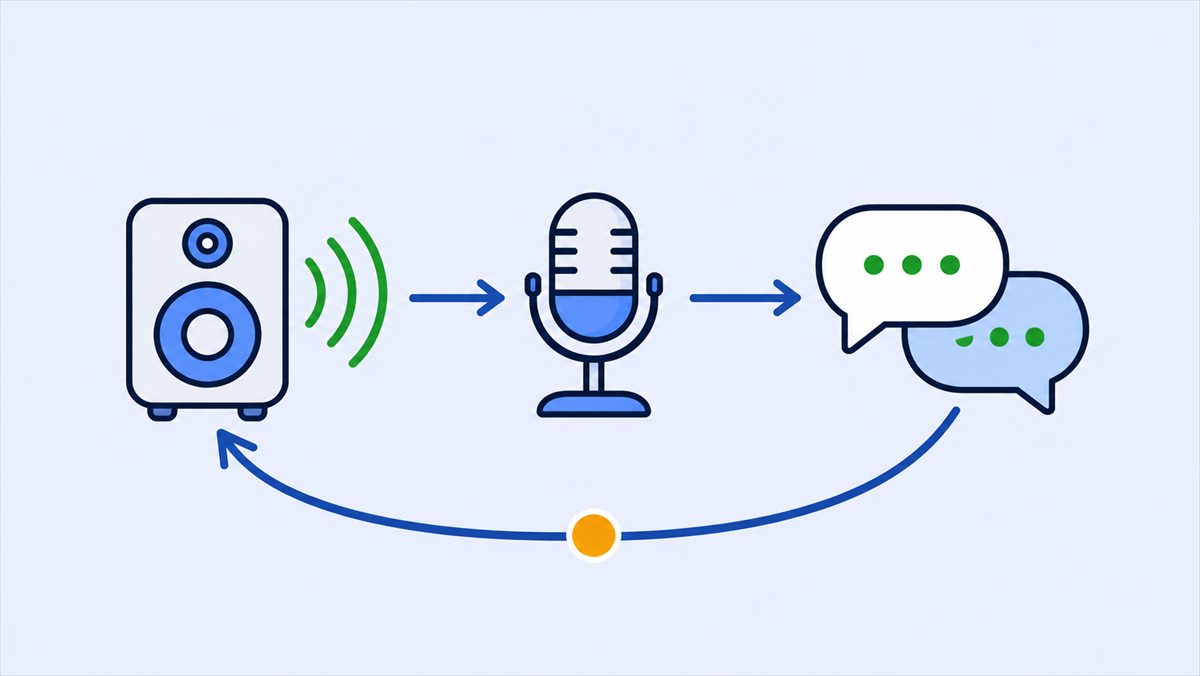
An echo on a call means your own voice, or someone else’s, is coming back a moment after it was said. It often comes from someone else’s device, not your own.
This guide explains why echo happens, how to find the device that is causing it, and the fixes in order, with the steps for Zoom, Google Meet and Microsoft Teams.
How we researched this
We don’t test products or steps ourselves. The causes and fixes come from Zoom’s help article on audio echo, its page on microphone settings, Google Meet’s help page on audio quality and Microsoft’s page on Teams audio settings. Menu names can differ a little between app versions, so each step names the page it comes from. See the full method.
Quick answer
Echo means a device is feeding the sound back into the call. Zoom’s help page lists three common causes: someone has both computer and phone audio on, two people with speakers on sit close together, or several computers in one room have audio on. The fastest fix is headphones: Google Meet’s help lists them first, followed by lowering your speaker volume and muting yourself when you are not speaking. To find out who is causing the echo, mute people one at a time.
Find who is causing the echo
Zoom’s help article says that if you hear echo, a device is channeling your audio back into the call. The person who hears the echo is often not the one causing it. To find the source, the host can mute attendees one at a time, or mute everyone and unmute one person at a time, and attendees can mute themselves.
| What you notice | Likely cause | What to do | Source |
|---|---|---|---|
| The echo starts when one person joins | That person has computer audio and phone audio on at the same time | Leave audio on one device only: call in by phone and leave computer audio, or the reverse | Zoom Support |
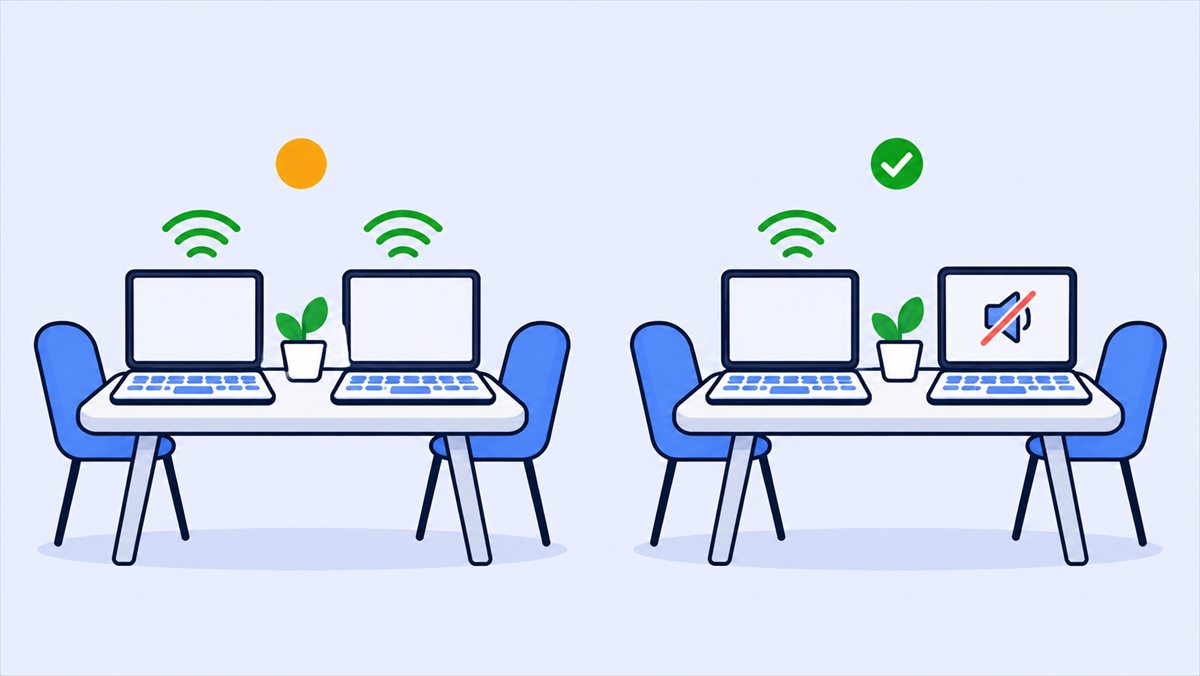
| Two people sitting close together both cause echo | Both have speakers on, close to each other | Leave audio on one computer, or hang up one of the phone connections | Zoom Support |
| Echo in a room with several laptops | Several computers in the room have audio on | Disconnect computer audio on all but one; muting is not enough because the speaker stays on | Zoom Support |
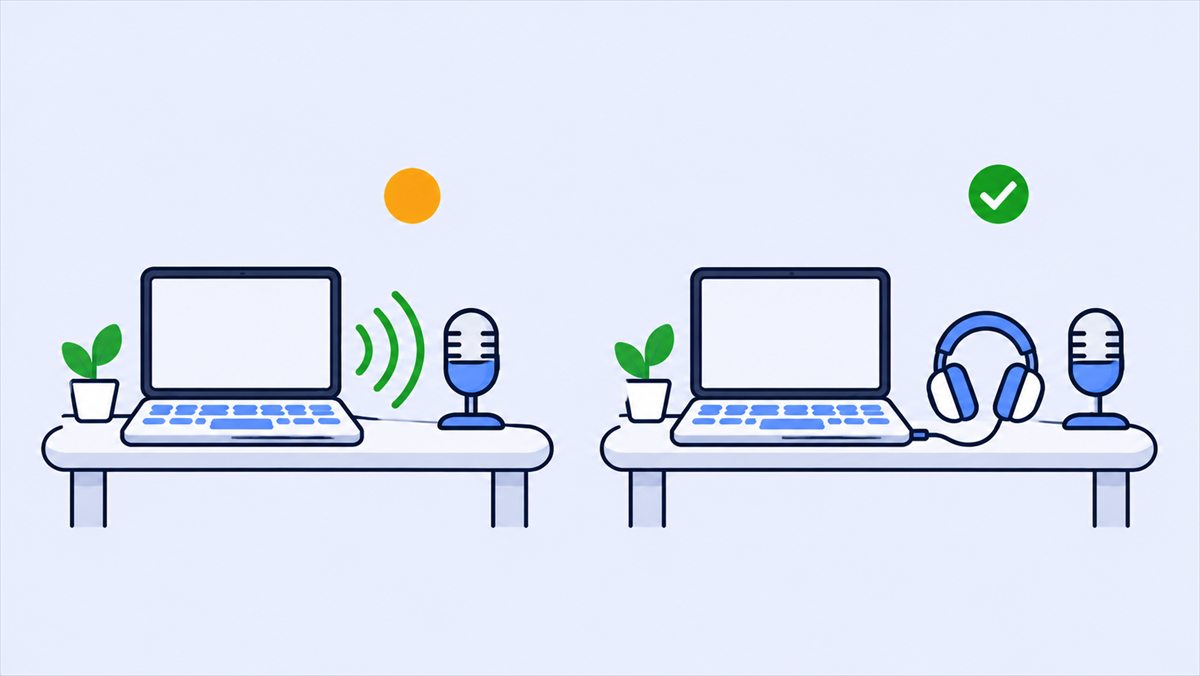
| Echo from one person who uses speakers | The speakers are too loud, such as a TV or soundbar | Use headphones or lower the speaker volume | Zoom Support, Google Meet Help |
| The echo keeps coming back for one person | Echo cancellation, the setting that prevents echoes between the mic and speakers, is failing because of a device or performance issue, or the microphone is bad | Try another microphone or headset and check the echo cancellation setting | Zoom Support |
Fixes, in order
- Wear headphones or a headset. Google Meet’s help lists using headphones first among its ways to avoid echo, followed by lowering your speaker volume and muting yourself when you are not speaking.
- Keep audio on one device. If you joined from a computer and also called in, or several devices in one room have audio on, disconnect audio on all but one. Zoom’s help says muting is not enough: muting turns off the microphone, but the speaker is still on.
- Turn the speakers down or move them away. Zoom lists speakers that are too loud, such as a TV or soundbar, as a source of echo.
- Check that your app uses the right devices. Google Meet’s help says to make sure Meet is set to the correct camera, microphone and speakers, notes that headsets may use the built-in microphone, and lists disconnecting external monitors among its fixes for poor audio.
- Keep echo cancellation on. Zoom says its app uses echo cancellation by default. In its Original sound for musicians mode there is an Echo cancellation option, which Zoom recommends turning off only when you use headphones to isolate audio or play instruments, and its High-fidelity music mode turns echo cancellation off. In the Zoom desktop app, open your profile picture, then Settings, then Audio, and under Microphone modes choose Noise removal (default).
- Try another microphone or headset. Zoom lists a bad microphone among the possible sources of echo.
If the echo started after you changed a headset or an adapter, see our guides to earbuds and headsets with a mic, USB audio adapters with a mic and USB headsets for work and calls.
App by app: what to check
| App | What to check | Where | Source |
|---|---|---|---|
| Zoom | Microphone modes set to Noise removal (default); Echo cancellation left on; computer and phone audio not both active | Profile picture, Settings, Audio, Microphone modes | Zoom Support |
| Google Meet | The echo warning: Meet shows a red dot on More options and tries to fix the echo automatically; its Troubleshooting & help section gives steps under Audio & video devices | More, Troubleshooting & help, Audio & video devices | Google Meet Help |
| Microsoft Teams | One audio source for each device you use: Computer audio, Phone audio, Room audio or Don’t use audio. If you call in, the device you joined from is muted | The pre-join screen, or Settings, Devices | Microsoft Support |
Microsoft’s Teams page lists the four audio sources but does not describe echo. The rule from Zoom’s advice holds in any app: only one device in a room should have audio on.
More audio and call gear guides
- Headphone and headset problems: every fix guide sorted by what you notice.
- How to make a headset mic louder: if your mic is quiet rather than echoing.
- Headphones not detected on a PC: if Windows does not see your headphones at all.
- All DeskConsensus guides: every guide in one place.
If it is your gear
Headphones or a headset are the first fix Google Meet lists. Our headset guide covers picks that carry sound and the mic on one cable.
How we research
For this guide we used Zoom’s help articles on managing audio echo and on professional audio settings, Google’s Meet help page on audio and video quality and Microsoft’s page on Teams audio settings. We do not test products or steps ourselves, and we say which app each step comes from. This guide covers the three meeting apps’ own advice and does not cover Windows sound settings.
Frequently asked questions
Why do other people hear an echo of me?
Zoom’s help article says echo means a device is channeling your audio back into the call. Its three common causes are computer and phone audio both active, speakers too close to each other, and several computers with active audio in one room.
If I hear an echo, is it my fault?
Not always. Zoom says the host can find the source by muting attendees one at a time, or by muting everyone and unmuting one at a time. Attendees can also mute themselves to check.
Does muting myself stop an echo?
Not in every case. Zoom says that when several computers in one room have audio on, muting is not enough, because muting turns off the microphone but the speaker is still on. Disconnect computer audio on the other devices.
Do headphones fix mic echo?
They are the first fix Google Meet lists, ahead of lowering your speaker volume and muting yourself when you are not speaking. Headphones keep the sound from your speakers out of your microphone.
Can a bad microphone cause echo?
Zoom lists a bad microphone among the possible sources, along with speakers that are too loud, such as a TV or soundbar, and echo cancellation that fails because of a device or performance issue.
Does Zoom have echo cancellation?
Yes. Zoom says its app uses noise suppression and echo cancellation by default. In its Original sound for musicians mode there is an Echo cancellation option, which Zoom recommends turning off only with headphones or when playing instruments.
What does Google Meet do about echo?
When Meet detects echo it shows a red dot on More options. Choose More, then Troubleshooting & help, and under Audio & video devices you will find instructions to minimize the echo. Meet also tries to fix the echo automatically.
Written by