
How to Make Your Headset Mic Louder on Windows, Mac and Chromebook
A quiet mic usually has a setting you can change: the volume for that microphone, the app’s own volume setting, or a boost option. Where it lives depends on whether you use Windows, a Mac or a Chromebook.
This guide shows where to turn up the microphone volume on each system, how to test it so you are not guessing, and what to check if it is still quiet.
How we researched this
We don’t test products or steps ourselves. The steps come from the support pages of Microsoft, Apple, Google and Zoom. Menu names can differ a little between versions, so we say which system each step is for. See the full method.
Quick answer
Open your system’s sound settings, choose your headset as the input, and drag the input volume slider up, then record a short test to hear the result. On Windows 11 that is Settings > System > Sound > Input. On a Mac it is System Settings > Sound > Input. On a Chromebook, select the time at the bottom right and open Audio settings. If the mic is quiet only in Zoom, check whether “Automatically adjust microphone volume” is on, because that locks the slider. Mic not working at all? See our guide to earbuds and headsets with a mic for laptops and PCs.
Four quick checks before you change anything
Microsoft’s microphone help pages cover these basics first, and they are worth a minute before you open any settings.
- Make sure the mic is connected properly and not muted. Many headsets have a mute button or switch on the ear cup or the cable.
- Check that the mic is positioned correctly. Microsoft lists this as a check, and a mic pointed away from your mouth will always sound quiet.
- Make sure your computer is using the headset mic, not the built-in one. You choose this in the sound settings below.
- On Windows, make sure apps are allowed to use the microphone (Settings > Privacy & security > Microphone).
Details are on Microsoft’s Fix microphone problems page.

Where to find the microphone volume on each system
This table shows the path for each system, from the support pages named above. The steps for each one follow below.
| System | Where to look | Built-in test |
|---|---|---|
| Windows 11 | Settings > System > Sound > Input, then your microphone > Input volume | Start test, then Play |
| Windows, older sound panel | More sound settings > Recording tab > Properties > Levels | Record a short clip in an app you use |
| Mac | System Settings > Sound > Input > input volume slider | Record a short clip in an app you use |
| Chromebook | Select the time > Audio settings, or Settings > Device > Audio > Input | Mic test |
| Zoom | Settings > Audio > Microphone > Input volume | Test microphone |
How to increase the microphone volume on Windows 11
These steps follow Microsoft’s page on setting up and testing microphones.
- Go to Start > Settings > System > Sound.
- Under Input, select your headset microphone and open its properties with the arrow next to it.
- Under Input settings, select Start test and speak at your normal volume.
- Select Stop test and play the recording back to hear how you sound.
- If you sound quiet, drag the Input volume slider up and test again.
Move the slider in small steps and test each time. A level that is too high can distort the sound, so stop once your voice is clear.
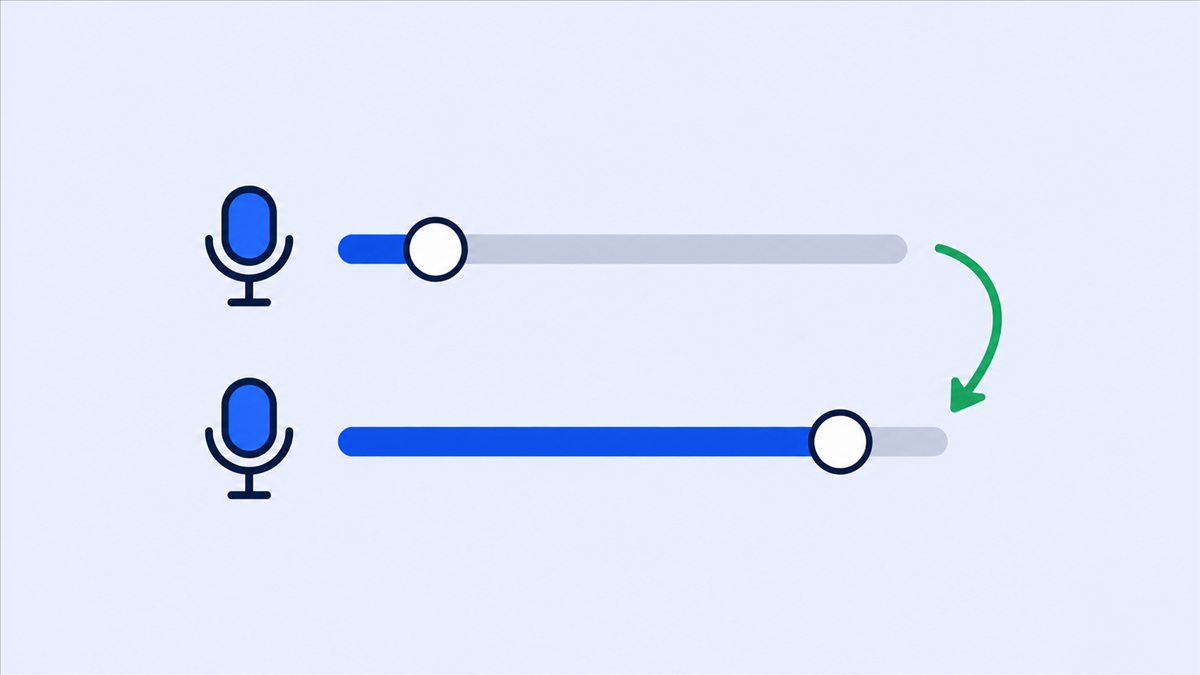
Windows Levels and Microphone Boost
Microsoft’s Surface support page describes a second place to look: open More sound settings, go to the Recording tab, select the microphone, choose Properties and open the Levels tab. You will see two sliders:
- Microphone sets the volume.
- Microphone Boost sets the strength of the signal. Microsoft’s example starting point for a Surface is Microphone 50 and Boost +24.0 dB.
That page is written for Surface devices, and Microsoft says Boost is not available on every Surface. It may not appear on every PC either, so if you do not see it, use the Input volume slider above. If you do see it, raise it a step at a time and play back a test after each change.
How to raise the microphone volume on a Mac
These steps follow Apple’s page on sound input settings.
- Choose Apple menu > System Settings, then click Sound in the sidebar (you may need to scroll down).
- Click Input and select your headset in the list of input devices.
- Drag the input volume slider to the right.
Apple says to raise the input volume when someone is speaking softly, and to lower it if the sound is too loud or distorted.
How to increase the microphone volume on a Chromebook
These steps follow Google’s Chromebook volume help page.
- Select the time at the bottom right of the screen.
- Next to the volume slider, select Audio settings.
- Under Input, drag the microphone slider to the right.
You can also open Settings > Device > Audio. Google lists an Input volume slider there, a device picker and a Mic test to check how you sound. Some Chromebooks also show a Bluetooth Super Resolution option when a Bluetooth headset with a mic is the input; Google says it improves the sound quality of the headset’s mic.
If the mic is only quiet in Zoom
Apps can have their own microphone setting on top of the system one. In Zoom, open Settings > Audio and look under Microphone. Zoom’s settings page lists two relevant options:
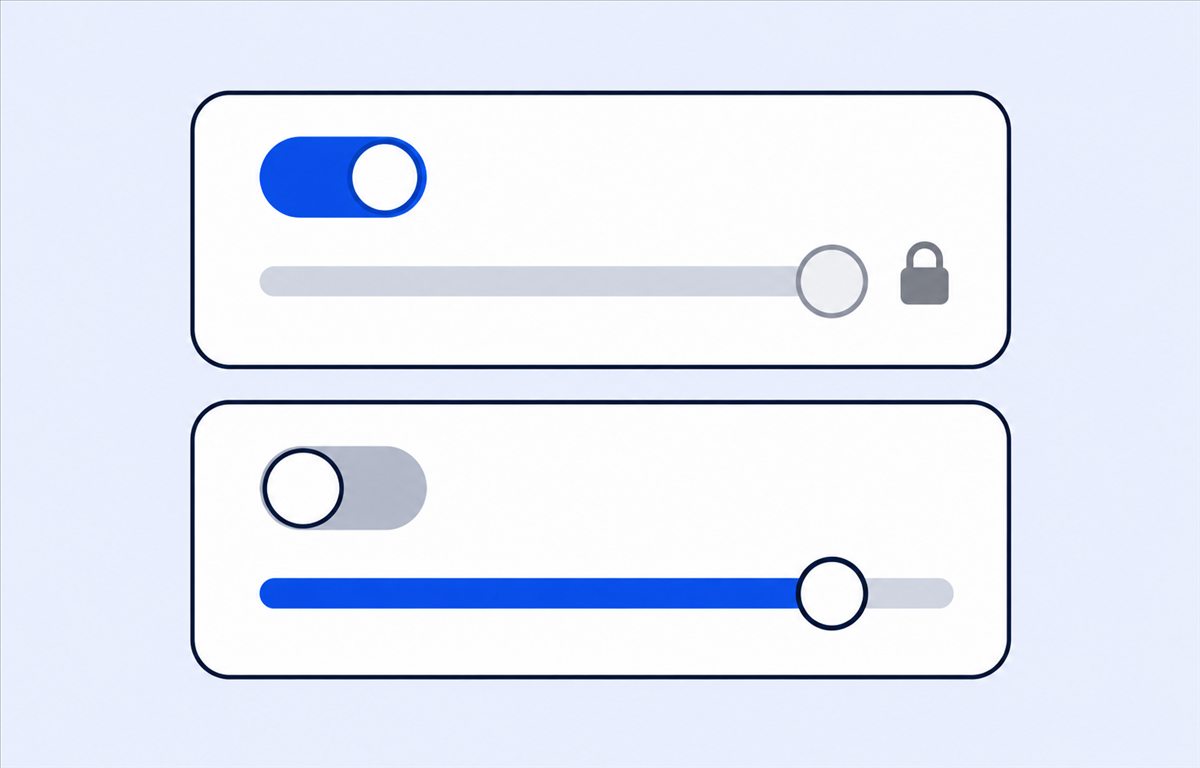
- Input volume is the slider for your mic. Zoom says it is unavailable when “Automatically adjust microphone volume” is turned on.
- Automatically adjust microphone volume keeps your level steady. Zoom suggests turning it off if your audio fades in and out.
So if the slider is grayed out, turn the automatic option off, then set the level yourself and use Test microphone to hear the result.
If you also hear background noise on your mic
Turning the volume up also makes the room louder, so it helps to know the noise settings that exist. Zoom uses noise suppression and echo cancellation by default (its Noise removal microphone mode). Chromebooks offer a Noise cancellation switch under Audio settings, but Google says only some devices support it. If others hear an echo of you instead, see our guide to fixing mic echo on calls.
Still too quiet? What to try next
- Test the mic outside the call app, with the Windows Start test or the Chromebook Mic test. If it sounds fine there but quiet in a call, look at the app’s own settings next.
- Check the mic position again, and the headset’s mute switch.
- Try the headset on another computer or in a different port. If it is quiet everywhere, the headset itself may be the limit, and a different one will do more than any setting. See our guide to USB headsets for work and calls. Other headset problems are sorted by symptom in our headphone and headset problems guide.
Thinking of a new headset?
See which earbuds and headsets with a mic reviewers recommend for laptops and PCs, and which connector each one needs.
How we research
For this guide we used Microsoft’s pages on setting up and testing microphones and on fixing microphone problems, its Surface sound page, Apple’s Mac sound input page, Google’s Chromebook audio help page and Zoom’s help article on microphone volume. We say which system each step is for, and we do not test products or steps ourselves. Menu names can differ between versions.
Frequently asked questions
How do I make my mic louder on Windows 11?
Go to Settings > System > Sound, select your microphone under Input, run Start test, and drag the Input volume slider up until the playback sounds clear. These are the steps on Microsoft’s microphone setup page.
How do I make my mic louder on a Mac?
Open System Settings > Sound > Input, select your headset, and drag the input volume slider to the right, as Apple describes.
How do I make my mic louder on a Chromebook?
Select the time at the bottom right, choose Audio settings next to the volume slider, and drag the microphone slider under Input. You can also use Settings > Device > Audio and run the Mic test.
Why is the microphone volume slider grayed out in Zoom?
Zoom says the Input volume slider is unavailable when “Automatically adjust microphone volume” is on. Turn that option off in Settings > Audio to set the level yourself.
What is Microphone Boost?
It is a second control on the Levels tab of the Windows sound panel. Microsoft describes it as the strength of the signal, separate from the Microphone volume slider. Microsoft says it is not available on every Surface, and it may not appear on every PC.
Why is my mic still quiet at full volume?
Check that the headset mic is selected as the input, that the mic is positioned near your mouth and not muted, and that the app is not limiting the level (Zoom’s automatic adjustment, for example). If the headset is quiet on every device, the headset itself may be the cause.
Written by