
Lighting for Video Calls at Your Desk: Where to Put the Light (2026)
Disclosure: As an Amazon Associate, we earn from qualifying purchases. This costs you nothing extra and does not change which products we pick. Read our disclosure.
On a video call, the light decides how you look. Most desks light a face badly: a ceiling light that throws shadows down your face, a window behind you, or only the glow of your monitor.
This guide shows where to put a light, what color and brightness to aim for, which call-app settings help, and three lights that suit a desk. We found no lab tests of these lights, and we say so where it matters.
How we researched this
We don’t test products ourselves. The placement advice comes from Tom’s Hardware and Tom’s Guide, the app settings from Zoom’s, Google’s and Microsoft’s own help pages, and the lights from reviews at Tom’s Guide, Cubed3, Gear Diary, CravingTech and Digital Trends plus the makers’ pages. We found no lab measurements of how these lights change a webcam picture. See the full method.
Quick answer
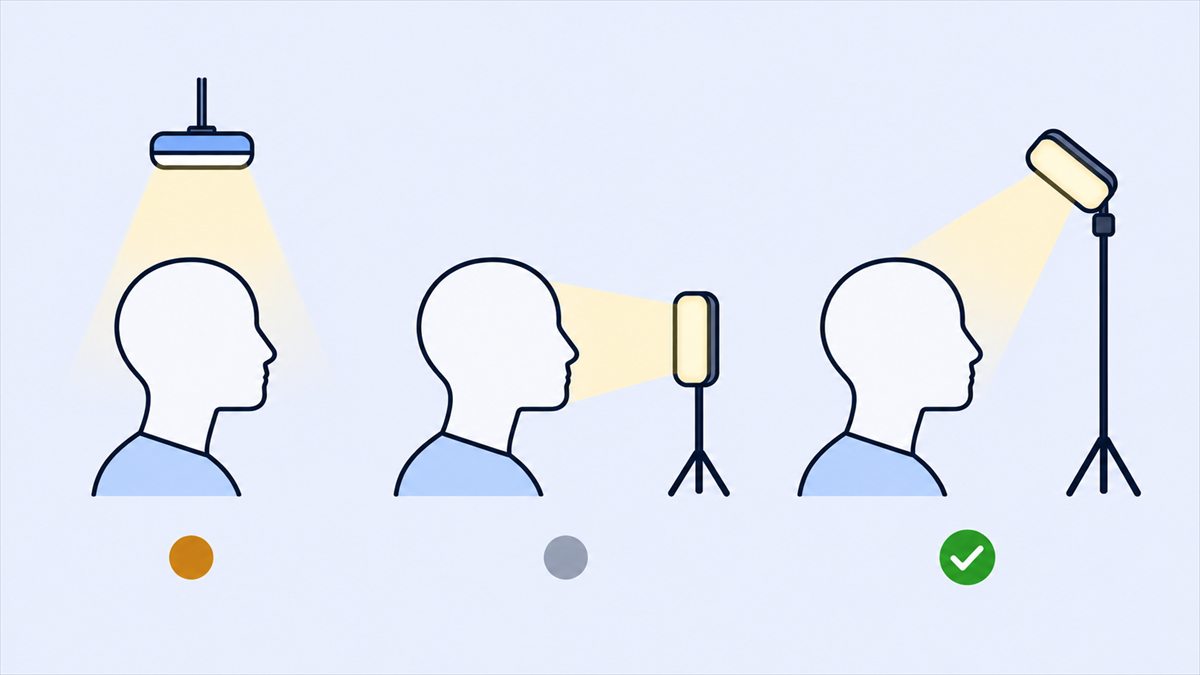
Put a soft light in front of you, a little to one side (about 45 degrees), and never behind you.
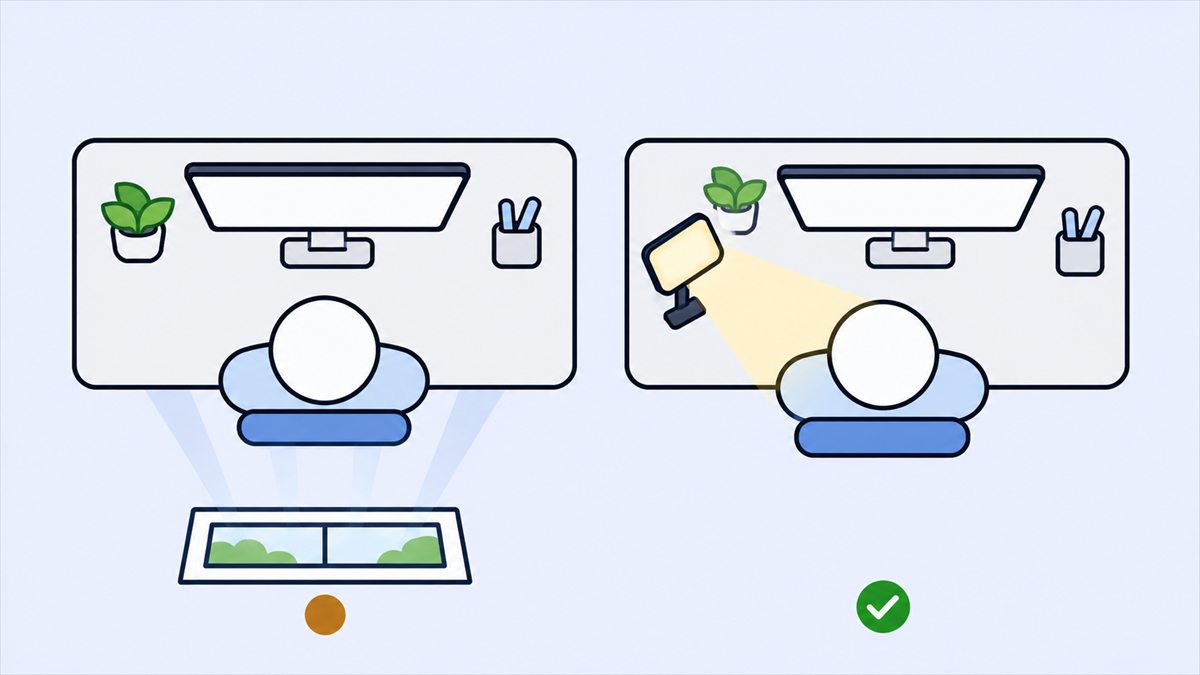
Tom’s Guide says sitting with a window behind you leaves your face in complete shadow, and Tom’s Hardware says ceiling lights shining down are some of the least flattering light there is. Free fixes first: face a window, or use a desk lamp with a daylight-style bulb (about 5500K, per Tom’s Guide). If that is not enough, a monitor-mounted light such as the Logitech Litra Glow is an easy add-on, which Tom’s Guide’s reviewer called simple to set up. Keep it soft and not too strong, because Zoom’s blog advises a relatively weak light so you do not look washed out. Your call app’s low-light setting is a backup, not a replacement. A monitor light bar lights your desk, not your face: see our monitor light bar guide.
Jump to your situation
Best monitor-top light
Logitech Litra Glow
Soft, diffused light that Tom’s Guide’s reviewer found easy on the eyes over long days; set from your computer.
Price band: $50–$75
Best desk panel
Elgato Key Light Neo
Even, edge-lit light with a wide color range, per Cubed3 and Gear Diary; needs a stronger power supply for full brightness.
Price band: $75–$100
Best small and portable
Lume Cube Video Conference Lighting Kit
A small light with a mount for a laptop or monitor; the detailed review covers an earlier version.
Price band: $50–$75
What you see on camera, and what to try
Match what you see in your own camera preview to the table, then change one thing at a time.
| What you see | Likely cause | What to try | Source |
|---|---|---|---|
| Your face is dark and the background is bright | A window or lamp behind you | Turn so the light is in front of you or beside you. Tom’s Guide says sitting with a window behind you leaves your face in complete shadow. | Tom’s Guide |
| Harsh shadows under your eyes and nose | Light shining down from the ceiling | Add a light from the front at about 45 degrees. Tom’s Hardware says ceiling lights are made to help you work, not to flatter a face. | Tom’s Hardware |
| Your face looks flat, with no shape | A light straight in front of you | Move the light to one side, or add a second light. Tom’s Hardware says straight-on light looks a little flat. | Tom’s Hardware, Tom’s Guide |
| Your face is washed out | A light that is too strong or too close | Dim it or move it back. If your monitor is the light, lower its brightness: Tom’s Guide says too much brightness blows out highlights. | Zoom’s blog, Tom’s Guide |
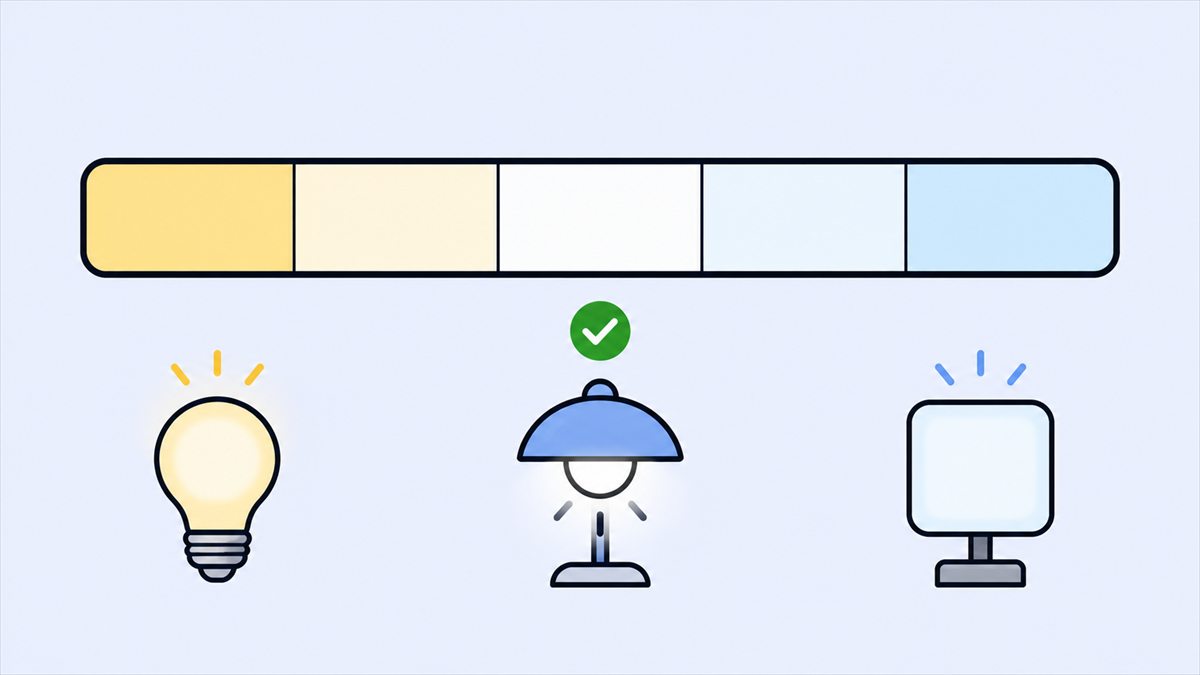
| Your skin looks yellow | Ordinary lamp bulbs | Use a bulb close to daylight, about 5500K, or a light with adjustable color. Tom’s Guide says many household bulbs cast a yellowish hue. | Tom’s Guide |
| The picture is dark or grainy | Not enough light | Add light first. Tom’s Hardware says webcams that handle poor light differ only a little, so it advises adding lights instead of shopping for a webcam that copes with the dark. | Tom’s Hardware |
Ways to light your face, from free to paid
You do not need a webcam light to fix most problems. Tom’s Hardware says a lamp or even the sun works, as long as you have two light sources, ideally with one of them dimmable. For a lamp with an adjustable arm, see our guide to swing-arm and gooseneck desk lamps.
| Option | Cost | Works best when | Watch out for |
|---|---|---|---|
| Daylight from a window | Free | The window is in front of you or beside you | A window behind you leaves your face in shadow, per Tom’s Guide |
| A desk lamp with a daylight-style bulb | Low | You can put it to one side of the monitor | Many household bulbs look yellowish, per Tom’s Guide |
| Your monitor showing a white page | Free | You have a large screen | Tom’s Guide says too much screen brightness blows out highlights |
| A clip-on or monitor-top light | $50–$100 for the lights below | You have no good window or lamp position | We found no lab test of these lights |
A monitor light bar is not on this list because it is built to light your desk, and some also light the wall behind the monitor. See our guides to monitor light bars and bias lighting.
Where to put the light
- Face your main light. Tom’s Guide says light should hit you from the front at about 45 degrees; from the side (perpendicular) is okay when it is a window.
- Keep windows and bright lamps out of the picture behind you. Tom’s Guide says to avoid backlighting, which leaves your face in shadow.
- Soften it. Zoom’s blog advises lighting your face indirectly from the front with a relatively weak light, and not pointing it straight at your eyes.
- If one light looks flat, add a second one at 45 degrees on the other side. Tom’s Guide calls the first the main light and the second a fill light, which lifts the shadows the main light casts.
- Leave some light in the room behind you, so you do not look like you are sitting in the dark, as Tom’s Hardware puts it.
Color temperature and brightness
Color temperature is measured in Kelvin (K) and tells you how warm or cool a light looks: lower numbers are yellower, higher numbers are bluer. Zoom’s blog gives about 2,700 to 3,000 K for an ordinary incandescent bulb, about 5,000 K for a tube fluorescent light and about 5,900 K for sunlight. Tom’s Guide suggests a bulb near daylight, about 5500K, for a cleaner, more natural look.
All three lights below can be set in that range: 2,700 to 6,500 K for the Litra Glow, 2,900 to 7,000 K for the Key Light Neo and 3,200 to 5,600 K for the Lume Cube kit CravingTech reviewed. They also list a CRI (color rendering index, how true colors look under the light) of 93 to 96: Tom’s Guide gives 93 for the Litra Glow, Cubed3 gives above 94 for the Key Light Neo, and CravingTech gives 96 for its Lume Cube kit.
More light is not always better. Zoom’s blog advises a relatively weak light so you do not look washed out, and Gear Diary says the Key Light Neo’s full 1,000 lumens is too much for video meetings. Start low and turn it up until your face looks natural in the preview.
Call app settings that help
Zoom, Google Meet and Microsoft Teams can brighten a dim picture for you. Tom’s Guide says these automatic features are no full substitute for proper lighting, so use them as a backup.
| App | Setting | Where to find it | Source |
|---|---|---|---|
| Zoom desktop app | Adjust for low light (Auto or Manual) and Portrait lighting, which dims the background while brightening you | Profile picture, Settings, Video & effects, Camera tab | Zoom Support |
| Google Meet on a computer | Adjust video lighting: Meet detects when you are underexposed and can raise brightness | More, Backgrounds and effects, Appearance | Google Meet Help |
| Microsoft Teams | Adjust brightness, a video filter for poor lighting | Open device settings on the pre-join screen, then Video Settings | Microsoft Support |
Tom’s Hardware adds that webcam auto-exposure (how the camera sets brightness by itself) and auto white balance (how it judges which color is white) are notoriously poor and should almost always be adjusted by hand in the camera’s software. With two lights in front of you, it says the auto-exposure should be turned off and tuned to suit them. Menu names can differ a little between app versions, so we name the page each step comes from.
The three lights compared
None of these lights has a lab test. The figures below are the makers’ or reviewers’, and each product section names the source.
| Product | Type | Mount | Color range | Price band | Best for | Link |
|---|---|---|---|---|---|---|
| Logitech Litra Glow | Monitor-mounted panel | Monitor mount included | 2,700 to 6,500 K | $50–$75 | A light on top of the monitor, set from your computer | Check price on Amazon (opens in a new tab) |
| Elgato Key Light Neo | Edge-lit panel | Monitor mount included | 2,900 to 7,000 K | $75–$100 | A bright, even light with a wide color range | Check price on Amazon (opens in a new tab) |
| Lume Cube Video Conference Lighting Kit | Small rechargeable light | Computer mount (check the listing) | 3,200 to 5,600 K (2022 kit) | $50–$75 | A small light for a laptop or travel bag | Check price on Amazon (opens in a new tab) |
Logitech Litra Glow: best monitor-top light
Type: Monitor-mounted panelColor range: 2,700 to 6,500 K (Tom’s Guide)Price band: $50–$75
Tom’s Guide (September 2022) called the Litra Glow a ring light alternative and said its frameless diffuser (a panel that spreads the light out) gives soft light that was easy on the eyes through long work days. The reviewer had no headache after hours, while a no-name ring light brought one on within an hour. It sits on top of a monitor on an included mount that adjusts for height, tilt and rotation, and you set brightness and warmth from your computer with Logitech’s G HUB app (Windows and Mac). Logitech says the frameless diffuser gives wide, soft light that eliminates harsh shadows. The Tom’s Guide reviewer also warned that you may not notice a huge difference in how you look.
Pros
- Soft, diffused light that Tom’s Guide’s reviewer found easy on the eyes over long days
- Brightness and warmth are set from your computer with Logitech’s G HUB app (Windows and Mac), per Tom’s Guide
- The included monitor mount adjusts for height, tilt and rotation, per Tom’s Guide
- 2,700 to 6,500 K color range, per Tom’s Guide
Cons
- Tom’s Guide’s reviewer said you may not notice a huge difference in how you look
- Costs more than some ring lights, as Tom’s Guide itself notes
- Tom’s Guide found the buttons on the light oddly placed on the back, where you rarely see them
- Digital Trends lists the short included power cable as a drawback
- The review dates from 2022 and covers one reviewer’s weeks of use
Who should skip it
Skip it if a free fix would solve your problem, such as turning your desk so a window is in front of you, or if you want a battery-powered light to carry around: Tom’s Guide describes a USB-powered light.
What the reviewers say
Tom’s Guide’s review is by one reviewer, was last updated September 16, 2022, and does not say whether the unit was bought or supplied. The reviewer compared it with their own ring light using a Logitech StreamCam, found similar results in daylight with the shade pulled down, and a more evenly lit picture in darker conditions. Digital Trends also lists the Litra Glow among its 2026 webcam lights, praising its diffuser and mount, without saying how it was tested.
Elgato Key Light Neo: best desk panel
Type: Edge-lit panelColor range: 2,900 to 7,000 K (Cubed3)Price band: $75–$100
The Key Light Neo is an edge-lit panel: the light comes in from the edges and spreads across a diffuser, like a small softbox. Cubed3 (March 2026) says this design removes harsh hotspots, and that on its webcam the light reduced grain and made colors more consistent. Gear Diary (January 2025) says brightness depends on the power source: 400 lumens (a measure of brightness) from a USB-A port, 700 from USB-C and 1,000 with a 3-amp power supply, and that 1,000 lumens is too much for video meetings. The listing we link is the black version with the monitor mount.
Pros
- Even, soft light without harsh hotspots, per Cubed3
- Any color temperature from 2,900 to 7,000 K in Elgato’s free app, per Gear Diary
- Warm and cool presets on the light itself, per Gear Diary
- Cubed3 says it reduced grain and made colors more consistent on its webcam
Cons
- Costs more than clip-on lights: Gear Diary says less expensive lights are on the market
- The full 1,000 lumens needs a 3-amp power supply; a USB-A port gives 400 lumens, per Gear Diary
- Exact color temperature needs Elgato’s app; the light itself has warm and cool presets, per Gear Diary
Who should skip it
Skip it if you want the lowest-cost fix or a battery-powered light to carry around: both reviews describe a USB-powered panel.
What the reviewers say
Cubed3 (March 30, 2026) and Gear Diary (January 15, 2025) both like the light. Cubed3 does not say whether its unit was bought or supplied; Gear Diary says its unit was a manufacturer-supplied review sample. Neither review is a lab test. Tom’s Hardware (July 2026) also names the Key Light Neo, with its monitor mount, among webcam lights, without test details.
Lume Cube Video Conference Lighting Kit: best small, portable light
Type: Small rechargeable lightColor range: 3,200 to 5,600 K (CravingTech, 2022 kit)Price band: $50–$75
The Lume Cube kit is a pocket-sized LED light with a mount for a laptop or monitor. CravingTech (February 2022) reviewed an earlier kit with a suction-cup mount and an included diffuser: 3,200 to 5,600 K, CRI 96 (a color-accuracy rating), dimming from 1 to 100 percent, and about 1.2 hours of battery at full power. The reviewer used it on a monitor at 5,600 K and 35 percent brightness with the diffuser on. Digital Trends lists the kit among its 2026 webcam lights, with a suction-cup mount and an extra diffuser. Lume Cube now describes a clip mount under a slightly different product name, so check that the Amazon listing matches the kit you want.
Pros
- Small and light, per CravingTech (the 2022 kit)
- Brightness from 1 to 100 percent and 3,200 to 5,600 K, per CravingTech
- An extra diffuser softens the light, per CravingTech and Digital Trends
- Can run plugged into a USB port, per Digital Trends
Cons
- CravingTech lists about 1.2 hours of battery at full power and 2.2 hours at half power
- Digital Trends says the mounting options feel limited and calls it relatively expensive for a webcam light
- The only detailed review we found is from 2022 and covers an earlier kit
- Lume Cube now describes a clip mount, so the Amazon listing may differ from the kit CravingTech reviewed
Who should skip it
Skip it if you want a light with a current independent review, or one you never have to charge: the battery runs about 1.2 hours at full power.
What the reviewers say
CravingTech’s review is by one reviewer, dates from February 23, 2022, and says Lume Cube supplied the review sample. The review also says the battery gave around 3 hours, which does not match its own spec list, so we quote the spec list. Digital Trends does not say how it tested the lights it lists. We found no lab test of this kit.
Verdict
Try the free fixes first: face a window, or put a lamp with a daylight-style bulb to one side. If you want one light that does the job on a desk, the Logitech Litra Glow has the clearest review: Tom’s Guide’s reviewer found its light soft and easy on the eyes, though that review is from 2022 and says you may not notice a huge difference. The Elgato Key Light Neo is the pick if you want more adjustment and can use a stronger power supply for full brightness. The Lume Cube kit is the small, portable option, with the thinnest and oldest evidence of the three.
A five-minute check before your next call
- Open your camera preview, or start a meeting by yourself, which Tom’s Guide says lets you change the settings and keep them for next time.
- Check what is behind you. No window or bright lamp should be in the picture behind your head.
- Look for shadows under your eyes and nose. If they are harsh, lower the light or move it to about 45 degrees to the front.
- Check that your face is not washed out. If it is, dim the light or move it back.
- Check the color. If your skin looks yellow, switch to a daylight-style bulb or a cooler setting.
- Turn on the app’s low-light setting only if the picture is still dark.
Light is half of how you come across. For the rest of your desk, see our guide to lighting for computer work. If your voice is the problem, see our guides to earbuds and headsets with a mic and making a headset mic louder.
Frequently asked questions
What is the best lighting for video calls?
A soft light in front of you, a little to one side at about 45 degrees, with nothing bright behind you. Tom’s Guide and Tom’s Hardware both say the light should hit your face from the front, not from above or behind. Free daylight from a window in front of you works well.
Where should I put a light for a video call?
In front of you and slightly off to one side, at about 45 degrees, according to Tom’s Guide. A light on top of your monitor is a straight-on position, which Tom’s Guide says can look flat, so a second light at 45 degrees helps if you want more shape.
Can I use my monitor as a light for video calls?
Yes, for a little extra light. Tom’s Guide says a mostly white page next to your call window can provide plenty of light on a big screen, but too much screen brightness blows out highlights and hides your face.
What color temperature should video call lighting be?
Tom’s Guide suggests about 5500K, close to daylight, because many household bulbs look yellowish. The lights in this guide can be set anywhere from about 2,700 to 7,000 K, so you can adjust until your skin looks natural.
Do the low-light settings in Zoom, Meet and Teams replace a real light?
No. Zoom, Google Meet and Microsoft Teams each have a setting that brightens a dim picture, but Tom’s Guide says these features are no full substitute for proper lighting.
Will a monitor light bar light my face for a video call?
Not usually. Monitor light bars are made to light your desk, and some also light the wall behind the monitor. See our guides to monitor light bars and bias lighting.
Is a clip-on light better than a ring light?
We found no independent comparison. Tom’s Guide’s reviewer found the Logitech Litra Glow gave similar results to their own no-name ring light in daylight and a more even picture in the dark, and got a headache from the ring light within an hour. That is one reviewer’s experience, not a measured result.
How we research
For this guide we used Tom’s Hardware and Tom’s Guide for placement, Zoom’s, Google’s and Microsoft’s help pages for app settings, and reviews at Tom’s Guide, Cubed3, Gear Diary, CravingTech and Digital Trends for the lights. We do not test products ourselves, and we say when evidence is thin: we found no lab test of any of these lights, and the Lume Cube review covers an earlier kit. We look for reviewers who bought the product themselves and were not sponsored, and we use sponsored reviews as little as possible; Gear Diary and CravingTech say their units were supplied by the maker.
Written by