
Headphones Sound Muffled, Crackling or Full of Static? Fixes in Order
Muffled, crackling and staticky headphones sound like three problems, but the makers’ support pages list overlapping causes: dirt on the part that produces the sound, a plug that is not fully in, a setting on the device, wireless interference, or a headset that has switched to a lower-quality mode. Most of these take a few minutes to check.
This guide starts with a table that matches the sound you hear to the likely cause, then goes through muffled sound, Windows crackle and static, wired headphones and Bluetooth, and a list of sounds that are normal. It ends with a table of which fixes the makers’ pages agree on.
How we researched this
We don’t test products or steps ourselves. The steps come from the makers’ own support pages: Microsoft’s page on distorted or crackling audio, Sony’s articles for wired and Bluetooth headphones, Bose, Razer, Corsair, Shokz, Nothing and Apple. Menu names can differ between devices and Windows versions. See the full method.
Quick answer
Find where the problem lives first: play the same audio on a second device, and a second pair of headphones on the first device. Bose, Razer and Sony all start there. For muffled sound, check the sound opening for earwax or dust (Sony says to blow it clear with an air blower, never a sharp object), replace worn ear tips or pads, push the plug in fully, and set the EQ to flat. On Windows over Bluetooth, Bose says to pick the Stereo entry, not Hands-Free, for full-range sound. For crackling or static on Windows, Microsoft says to turn off audio enhancements (Settings, System, Sound, your device, Audio enhancements), then try a different default format, update the audio driver and restart the Windows audio services. For Bluetooth, Sony, Apple and Bose say to move closer, away from Wi-Fi and microwaves, then reset and pair again.
Which sound do you hear?
The makers do not publish one list for every sound, so this table sorts their advice by what you hear. It shows where to look first. It is not a diagnosis, and the cause on your headphones may differ.
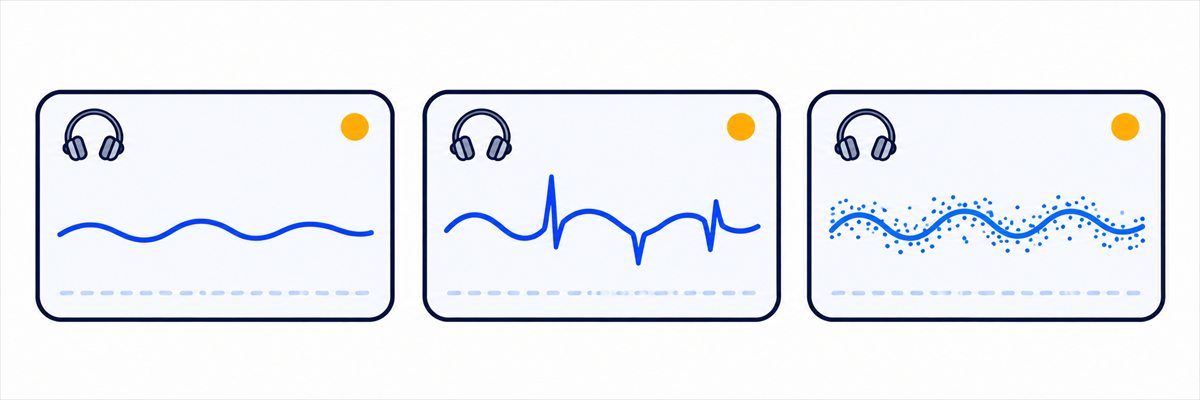
| What you hear | What the makers point to | Try this first | Source |
|---|---|---|---|
| Dull or muffled all the time | Earwax or dust on the part that produces the sound, worn or damaged ear tips or pads, a poor fit, or a plug that is not fully in | Check the sound opening and blow dust away with an air blower; push the plug in fully | Sony |
| Less bass than before on AirPods Pro | A poor seal, or dirt on the meshes | Run the Ear Tip Fit Test or Acoustic Seal Test, then clean the meshes | Apple |
| Poor or thin sound on a Windows PC over Bluetooth | The headset used in its Hands-Free entry instead of Stereo, or an EQ or loudness setting | Choose the Stereo entry in the audio device list and set the EQ to flat | Bose |
| Crackle or distortion on a Windows PC | Audio enhancements, the audio format, an outdated or damaged driver, or stopped audio services | Turn off audio enhancements, then change the default format | Microsoft |
| Static, buzzing or crackling from a 3.5 mm headset | Dirt in the port or jack, a jack not fully in, surround or spatial sound software, or the audio driver | Clean the port and plug, push the plug in fully, turn off the surround software | Razer, Corsair |
| Static or crackling from a USB or wireless USB headset | A USB hub, wireless interference, or the headset’s effects settings | Plug straight into the PC, move other wireless devices away, switch the effects off | Razer |
| Crackle or static on Bluetooth that comes and goes | Wi-Fi, microwaves, walls, a crowd, or your body blocking the antenna | Move closer, away from Wi-Fi devices; reset and pair again | Sony, Apple |
| Crackle or distortion only when the volume is high | The playback device, not the headphones, on some devices | Turn the volume down on the device | Sony |
| Crackle only when you move the cable or the plug | A plug that is not seated, debris in the jack, or a damaged cable | Unplug and plug in again; try a different pair | Bose, Sony |
Find out where the problem lives
Three quick tests tell you whether the headphones, the device or one app is at fault. Do them before you clean or reset anything.
- Play the same audio on a second device. Sony says to connect the headphones to a different source and see whether the noise stays. Razer says that if a USB headset works on another computer, the first computer or its USB port may be the problem.
- Plug a second pair of headphones into the first device. Sony and Bose both say this shows whether the noise comes from the device or from the headphones.
- Try a different app or file. Bose says that if the problem happens in only one app, it is likely the app or its settings. Apple’s page for the first-generation AirPods Pro gives the same test.
- Take the cable away from your clothes. Sony says a cable rubbing against clothing can be heard through the cable, and a cable clip may reduce it.
If the sound is fine on the second device, the first device or its settings are the cause, so use the Windows or phone steps below. If the same sound follows the headphones everywhere, work through the muffled, wired or Bluetooth sections.
Muffled sound: fixes in order
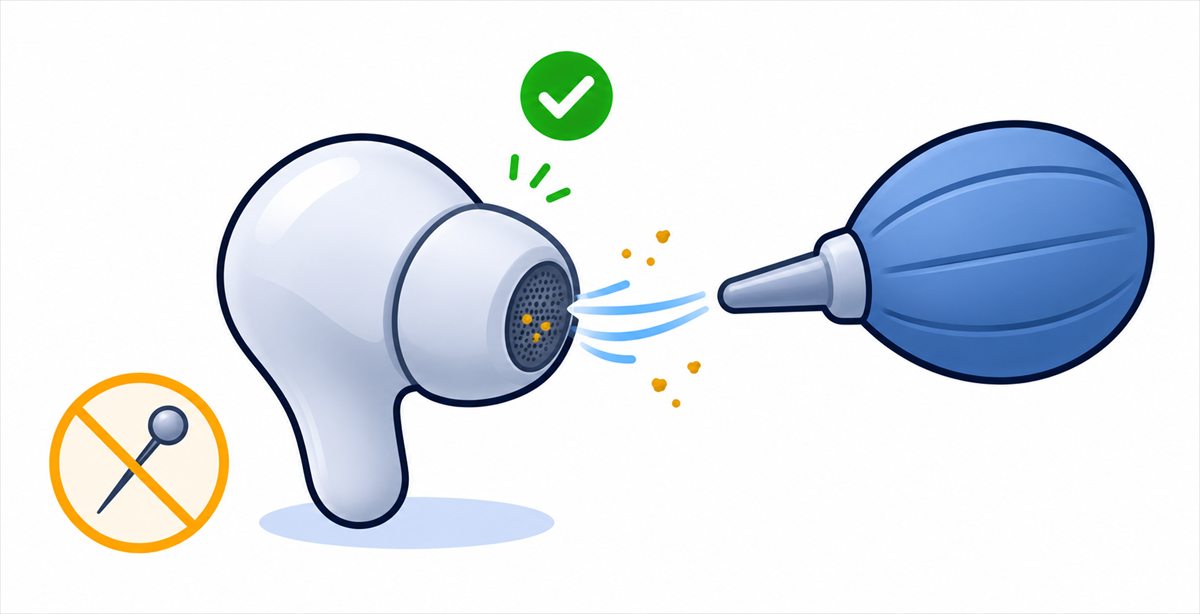
- Check the sound opening. Sony says earwax or dust on the part of the headphones that produces the sound can cause decreased volume and worse sound quality. It says to blow the dirt away with an air blower and not to use a sharp object such as the tip of a pen.
- Clean only what the maker shows. For AirPods Pro 2 and 3, Apple says to remove the ear tips, clean only the circled meshes with a soft-bristled brush, and let the AirPods dry at least two hours before using them or putting them in the case. Apple also says that a loss of bass with Active Noise Cancellation on can mean they need cleaning.
- Check the seal and the ear tips. Apple says a good seal gives the best sound quality, and its ear tip page says left and right may need different sizes. Sony says to use an earbud size that sits snug, and to replace earbuds or earpads that are damaged or worn out.
- Run the seal test on AirPods Pro. With the AirPods in your ears, open Settings, tap Bluetooth, tap the Info button next to them, then tap Ear Tip Fit Test (AirPods Pro 1 and 2) or Test Acoustic Seal (AirPods Pro 3), tap Continue and tap Play. If the earbuds will not stay in place, see our guide to earbuds that keep falling out.
- Push the plug in fully. Sony says muffled sound or noise can occur when the plug is not completely connected. It says to unplug the plug from the device about three times and plug it in firmly, and to clean the plug regularly with a dry cloth.
- On Windows over Bluetooth, pick Stereo, not Hands-Free. In its poor sound quality article, Bose says to click the speaker icon, click the arrow above the volume slider, and choose the entry marked Stereo or A2DP. The same headphones also appear marked Hands-Free or HSP, and Bose says to choose Stereo for full-range audio.
- Check the EQ. Bose says to set the EQ on the Bluetooth device to off or flat and to switch off loudness, compression and reverb. On iPhone, Apple says EQ is under Settings, Apps, Music and changes the way music sounds.
- Let sweaty or wet headphones dry. Shokz says that if the problem started after heavy sweating or rain, put the headphones in a well-ventilated place for at least 24 hours and wipe them with a dry, soft cloth after sweating. That advice is for Shokz headphones, so check your own maker’s page for water ratings.
- Stop at damage. Sony says that if none of its solutions helps, the headphones are highly likely damaged and need repair or replacement.
None of the pages we read says Windows audio enhancements cause muffled sound, so those steps are in the crackle and static section below. If music sounds clear and only your voice or other people on a call sound muffled, that is a microphone or call-mode problem, and this guide does not cover it.
Crackling or static on a Windows PC
Microsoft’s page on distorted or crackling audio gives four fixes in order for Windows 11 and Windows 10. It says audio enhancements can cause distortion or crackling on some devices, that an unsupported or incorrect audio format can reduce sound quality, and that outdated or corrupted drivers can cause distorted sound. It does not mention headphones or Bluetooth, so the steps apply to whatever device Windows is playing to. Test your audio after each step.
| Fix | Windows 11 | Windows 10 |
|---|---|---|
| 1. Turn off audio enhancements (Microsoft) | Start, Settings, System, Sound. Under Output, select your audio device, select Audio enhancements, and turn enhancements off. | Right-click the Volume icon on the taskbar, select Sounds, open the Playback tab, select the device, Properties, Enhancements tab, Disable all enhancements, OK. |
| 2. Change the default format (Microsoft) | Same path to your device, select Advanced, and under Default format choose a different format. | Sounds, Playback tab, the device, Properties, Advanced tab, and under Default format choose a different format, then OK. |
| 3. Update or reinstall the driver (Microsoft) | Search for Device Manager, expand Sound, video and game controllers, right-click your audio device, select Update driver and restart. If it continues, uninstall the driver and install the latest one from the maker’s website. | The same steps as Windows 11. |
| 4. Restart the audio services (Microsoft) | Start, type services.msc, press Enter. Right-click Windows Audio and select Restart, then do the same for Windows Audio Endpoint Builder. | The same steps as Windows 11. |
| Turn off Spatial sound (Corsair) | Settings, System, Sound, select the output device, open the Spatial sound drop-down and select Off. | Right-click the speaker icon, Open Sound settings, Sound Control Panel, right-click the device, Properties, Spatial Sound tab, select Off. |
| Choose Stereo, not Hands-Free (Bose) | Click the speaker icon, click the arrow above the volume slider, and select the entry marked Stereo or A2DP. | Bose describes the same steps for a Windows computer and does not name a version. |
Microsoft’s broader sound page also lists running the audio troubleshooter (Settings, System, Troubleshoot, Other troubleshooters, Audio, Run) and installing Windows updates. Corsair adds that if a Realtek audio driver is listed, you can uninstall it in Device Manager, tick the box to delete its driver software and restart, and Windows installs a generic driver.
Wired headphones: plug, jack and cable
- Unplug and plug in again, fully. Razer says to confirm the jack is plugged in properly. Bose says that if you rotate the plug in the jack and hear crackling, there may be debris or a contact problem inside the jack.
- Check the port and the plug for dirt. Razer and Corsair both say dirt or debris in the port or cable can cause static. Sony says to clean the plug with a dry cloth.
- Bypass adapters and extension cables. Bose says to disconnect any extension cable or adapter and see whether the problem is the adapter.
- Turn the volume down. Sony says that on some devices the sound can become distorted or cracked when the volume is turned up, and to use the headphones with the volume turned down. Sony also warns that prolonged listening at high volume may harm hearing.
- Plug a USB headset straight into the PC. Razer says not to use a USB hub, and to test the headset on another computer. If you are choosing a headset, see our guide to USB headsets for work and calls.
- Turn off surround or spatial software. Razer says to disable its 7.1 Surround Sound or THX Spatial software and test. If the headset works with the software off, reinstall the software and restart the computer.
- Check the cable. Bose says to replace the cable if the plug or any part of it is damaged. Sony says to pull the plug, not the cable, and not to wrap the cable tightly around a device.
Bluetooth and wireless: interference, reset and settings
Wireless headphones can crackle or hiss when the signal is weak. Sony’s help guide for one headset explains that Bluetooth and Wi-Fi use the same 2.4 GHz frequency, so noise or dropouts can happen near a Wi-Fi device, and it suggests keeping at least 10 m (30 feet) away from Wi-Fi devices.
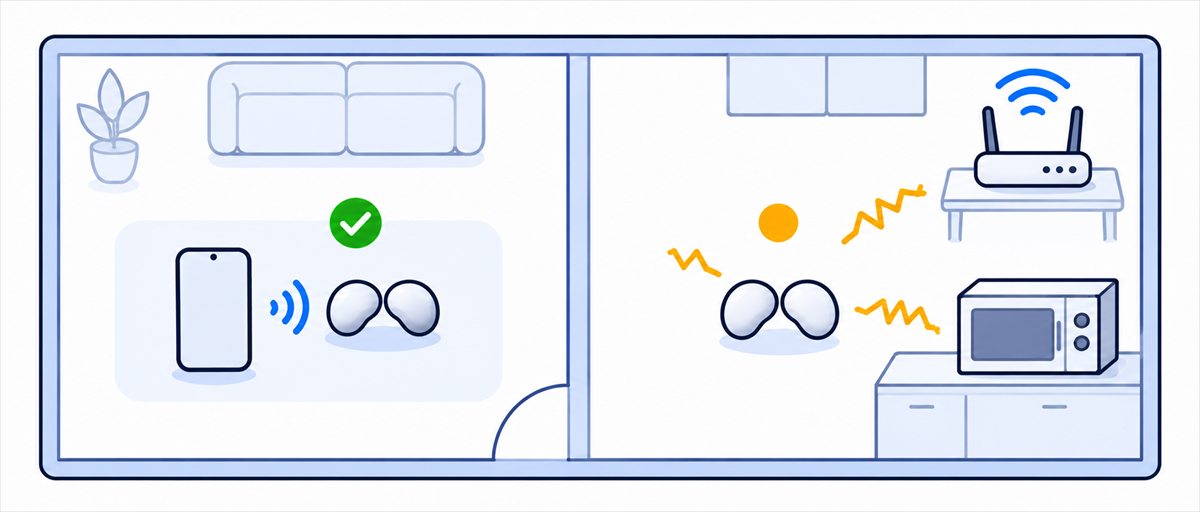
- Move closer and clear the path. Apple says to keep the device close with no walls or floors in between, and to move away from places with a lot of Wi-Fi activity, poorly shielded cables, microwave ovens and wireless speakers. Sony says your body can block the antenna, and Bose gives a range of 33 feet (10 meters) that obstacles reduce.
- Update the devices. Apple says to update the iPhone, iPad or Mac and the AirPods or Beats firmware before anything else. Sony, Shokz and Nothing all say to update the headphones in their app.
- Charge the headphones. Shokz says that if the battery is below 50%, charge it fully, because a low battery can sometimes cause static or other unusual sounds.
- Reconnect them. Sony says to put the earbuds in the case, close the lid, take them out and reconnect. Apple says to forget the headphones on the device (Settings, Bluetooth, the Info button, Forget This Device), restart the device and pair again.
- Change the connection setting if there is one. Sony says to set Bluetooth Connection Quality to Prioritize Stable Connection in its app, and if you can choose the codec on the phone, to try AAC first and then SBC. Shokz points to High Stability Priority for one model.
- Reset the headphones. Sony says to reset and then initialize the headphones and pair them again; steps vary by model, so use the manual. Bose and Nothing also list a reset.
- Turn off a second connection. Bose says that if another device’s notifications interrupt your listening, turn off Multi-point in its app.
- Check the air holes. Nothing says to check that the three air holes inside an earbud are not blocked.
Sony says noise that sounds different from ordinary static or distortion from interference is a reason to contact its Product Support. Apple’s page on crackling in the first-generation AirPods Pro is archived and says the service program linked from it has ended.
Sounds that are normal
Some of what people take for a fault is what the maker calls normal. Check this table before you reset or return anything.
| What you hear | What the maker says | Source |
|---|---|---|
| A faint static or hiss with noise canceling on | White noise is a normal characteristic of noise canceling, not a defect. You can turn noise canceling off in its app if it bothers you. | Sony |
| Brief crackle or distortion in a very loud place | In places such as airplane takeoffs, concerts or construction, the noise-canceling microphones can be overwhelmed. It is normal and does not damage the product; move away from the loud source. | Bose |
| Crackle or pop when you first put in canal-type earbuds | Not a failure. It can happen because the earbuds are not stable right after you put them in, and it goes away after a while. | Sony |
| A beep that sounds like whistling or crackle | Customers sometimes mistake the headphones’ own prompt sounds for whistling or crackling, and the prompts can be turned off in the app. | Shokz |
| A rustle when you move | Cable brushing against clothes can be heard through the cable. A cable clip may reduce it. | Sony |
Where the maker pages agree
This table counts how many of the pages we read list each fix. A step that appears on several makers’ pages is a safer first try than one that appears on only one, though a step missing from a page does not mean it is wrong for your headphones.
| Fix | Pages that list it | Pages |
|---|---|---|
| Test on a second device, pair or app | Sony, Razer, Corsair, Bose, Apple | 5 |
| Move closer and away from wireless interference | Sony, Razer, Bose, Apple, Shokz | 5 |
| Check that the plug is in fully, and clean the plug, jack or port | Sony, Razer, Corsair, Bose | 4 |
| Turn off enhancements, spatial sound, surround software or loudness | Microsoft, Razer, Corsair, Bose | 4 |
| Reset the headphones | Sony, Bose, Nothing, Apple | 4 |
| Update the headphones’ firmware or app | Sony, Apple, Shokz, Nothing | 4 |
| Update or reinstall the audio driver | Microsoft, Razer, Corsair | 3 |
| Check the battery or charge | Sony, Corsair, Shokz | 3 |
| Clean the sound opening, mesh or air holes | Sony, Apple, Nothing | 3 |
| Forget and pair again | Sony, Apple | 2 |
| Change the default audio format | Microsoft | 1 |
| Restart the Windows audio services | Microsoft | 1 |
| Choose Stereo, not Hands-Free, on Windows | Bose | 1 |
The pages come from Microsoft, Sony (five articles), Razer, Corsair, Bose, Apple, Shokz and Nothing. Several of them describe one brand or model, so check the page for your own headphones.
When to stop and contact the maker
If the sound is the same on every device after the steps above, the headphones may be at fault. Sony says that if none of its solutions helps, the headphones are highly likely damaged and need repair or replacement, and that noise unlike ordinary static or interference should go to its Product Support. Apple’s page on noise canceling says that if a reset does not help, you might need service. Razer says that if a USB headset works on another computer, the first computer or its USB port may be defective.
More earbud and headset guides
- One earbud or one side of your headphones not working: if the sound is fine on one side only.
- Headphones not detected on a PC or laptop: if there is no sound at all.
- Headphone and headset problems: every fix guide sorted by what you notice.
- All DeskConsensus guides: every guide in one place.
If it is time for a new pair
If the sound problem follows the headphones to every device and the maker’s steps do not fix it, a replacement may be the answer. Our guide covers earbuds and headsets with a mic that work with laptops and PCs, and which connector each one needs.
How we research
For this guide we used support pages from Microsoft (distorted or crackling audio, and sound problems), Sony (five articles, one of them on Sony’s India support site because its wired-headphone article has no US or Canada copy). We also used Razer, Corsair, Bose, Shokz, Nothing and Apple (wireless sound, noise canceling, ear tips, cleaning, Music EQ and an archived AirPods Pro page). We do not test products or steps ourselves, and no page we read says how often each cause happens, so the order of steps is not a ranking of causes. Several pages describe one brand or model, so check the page for your own headphones. Menu names can differ between devices and Windows versions.
Frequently asked questions
Why do my headphones sound muffled?
Sony lists earwax or dust on the part that produces the sound, worn or damaged ear tips or pads, a poor fit and a plug that is not fully in. Apple says a good seal gives the best sound, and Bose says that on Windows over Bluetooth you should pick the Stereo entry, not Hands-Free. Clean, check the fit and the plug, then test on a second device.
How do I fix crackling headphones on Windows 11?
Microsoft says to open Settings, System, Sound, select your device under Output, open Audio enhancements and turn them off. Then try a different Default format under Advanced, update the audio driver in Device Manager and restart the Windows Audio and Windows Audio Endpoint Builder services. Corsair also says to set Spatial sound to Off.
Why do my headphones have static?
The makers list wireless interference, dirt in the plug or jack, a driver or software setting, and a low battery. Sony also says a faint static with noise canceling on is a normal characteristic of noise canceling, so check that before you reset anything.
Why do Bluetooth headphones crackle?
Sony says Bluetooth and Wi-Fi share the 2.4 GHz frequency, so noise or dropouts can happen near Wi-Fi devices, and walls or your own body can block the signal. Move closer, update the headphones, reconnect them and reset them if it continues.
Can a dirty plug or jack cause crackling?
Yes, according to Razer, Corsair and Sony: dirt or debris in the port or on the plug can cause static or a poor connection. Bose says that if rotating the plug in the jack causes crackling, there may be debris or a contact problem inside the jack.
Is it normal for earbuds to crackle when I put them in?
Sony says crackling or popping when you put in canal-type earbuds is not a failure. It can happen because the earbuds are not stable right after you put them in, and it goes away after a while.
Why do my headphones crackle only at high volume?
Sony says that, depending on the device, the sound can become distorted or cracked when the volume is turned up, and to use the headphones with the volume turned down. Bose says very loud surroundings can overwhelm noise-canceling microphones and cause brief crackling, which it calls normal.
Should I replace my headphones?
Only after the steps above. Sony says that if none of its solutions helps, the headphones are highly likely damaged and need repair or replacement. Bose says to replace the cable if the plug or any part of it is damaged.
Written by